Minecraft Java Mods: What Are They?
Minecraft Java mods are community-made files that change or expand Minecraft Java Edition. They can add new features, items, mobs, mechanics, or world content. Some mods improve performance or make everyday tasks easier.
For example, a mod can improve the interface, add new creatures, or optimize game performance. Other mods can introduce entirely new gameplay systems. These changes give players more ways to customize their Minecraft experience.
Minecraft Java mods work with the Java Edition modding ecosystem. They differ from Bedrock add-ons, which use a separate system. A Java mod cannot automatically work with Minecraft Bedrock Edition.
You also need a few things before using Java mods. First, you need Minecraft Java Edition and the correct Minecraft version. You also need a compatible mod loader, such as Fabric, Forge, or NeoForge. The mod file must match that loader and version. Some Java mods also require additional dependencies to work correctly.
Checking these requirements first can prevent many installation problems.
How Minecraft Java Mods Work
Minecraft Java mods work by changing specific parts of the game’s code or content. Each mod focuses on a particular purpose.
What a Mod Changes
Mods can change gameplay, world generation, graphics, and performance. They can also add new items, blocks, mobs, or other content.
Some mods improve the user interface and make menus easier to use. Others add quality-of-life features that simplify common tasks.
World-generation mods can change terrain, structures, biomes, or exploration. Gameplay mods can introduce new mechanics and challenges. Performance mods focus on smoother gameplay and better resource use.
The changes depend on the mod and its supported Minecraft version.
What Is a Mod Loader?
A mod loader helps Minecraft Java Edition load compatible mods. It provides the framework that connects mods with the game.
Common loaders include Fabric, Forge, and NeoForge. Each loader has its own ecosystem and compatibility requirements.
You must use the loader that the selected mod supports. A Fabric mod does not automatically work with Forge or NeoForge.
Vanilla Minecraft vs Modded Minecraft
Vanilla Minecraft means the standard game without third-party mods. Modded Minecraft uses additional files that change or expand the game.
Your modded installation can still use the same Minecraft world. However, removing important mods can affect worlds that depend on their content.
Where to Download Minecraft Java Mods Safely
Choosing a trusted source matters when you download Minecraft Java mods. Established platforms make it easier to find compatible files and project information.
Modrinth
Modrinth is a major platform for discovering Minecraft mods. Its search tools and filters help you find mods by Minecraft version and loader. Project pages also provide release files, descriptions, and dependency information.
CurseForge
CurseForge offers a large Minecraft mod library. You can browse mods and filter results by game version, mod loader, and other options. Its app also supports direct mod installation and profile management.
What to Check Before Downloading
Check the project author, Minecraft version, and mod loader first. Then review required dependencies and the specific release version. Make sure the download comes from the project’s trusted page. Fabric specifically recommends checking the Minecraft version, loader, and Java Edition compatibility.
Avoid Random Download Websites
Avoid unfamiliar websites that rehost Minecraft mods. They can provide misleading downloads or malicious files. Fabric recommends trusted platforms such as Modrinth and CurseForge.
Fabric vs Forge vs NeoForge
Minecraft Java mods use a mod loader to connect their files with the game. Fabric, Forge, and NeoForge each support different mod ecosystems. Your choice depends mainly on the mods you want to install.
Fabric
Fabric provides a lightweight modding ecosystem with its own Fabric Loader. Many Fabric mods also require Fabric API. You must match the mod with both your Minecraft version and Fabric Loader version. Fabric supports many performance and quality-of-life mods.
Forge
Forge is a long-running Minecraft mod-loader ecosystem. It supports a large collection of established mods across many Minecraft versions. Forge mods require a compatible Forge installation. A Fabric or NeoForge version does not automatically work with Forge.
NeoForge
NeoForge provides a separate modern mod-loader ecosystem. Its mods have their own compatibility requirements. Check the exact Minecraft version and NeoForge version before downloading a mod. NeoForge also maintains its own installation and version guidance.
Which Loader Should You Use?
There is no single loader that works best for every player. Choose the loader required by the mods you want to use. Check both the Minecraft version and loader before installation. CurseForge also identifies incompatible game versions and modloaders when managing mods.
What to Check Before Installing a Mod
Before installing a Minecraft Java mod, check its compatibility details. A few quick checks can prevent crashes and loading errors.
Minecraft Version
Check the exact Minecraft version listed by the mod. A label such as 1.21.x does not guarantee compatibility with every 1.21 release. A mod built for 1.21.1 may not support 1.21.8.
Mod Loader
Check which loader the mod requires. Common choices include Fabric, Forge, NeoForge, and Quilt. The mod and loader must support the same Minecraft version.
Dependencies
Some mods require additional files called dependencies. Required dependencies must exist before the mod can load. Optional dependencies provide extra features but may not remain necessary for basic operation.
Examples include Fabric API, library mods, and configuration libraries.
Client-Side vs Server-Side
A client-only mod runs on your Minecraft installation. Server-side mods run on the server. Some multiplayer mods require matching files on both the client and server.
Back Up Your Worlds
Create a backup before adding or updating important mods. NeoForge recommends backing up worlds before updating NeoForge or mods. This gives you a recovery option if changes cause problems.
How to Install Minecraft Java Mods Manually
Manual installation gives you direct control over your Minecraft Java mods. Follow these steps carefully to avoid version and dependency errors.
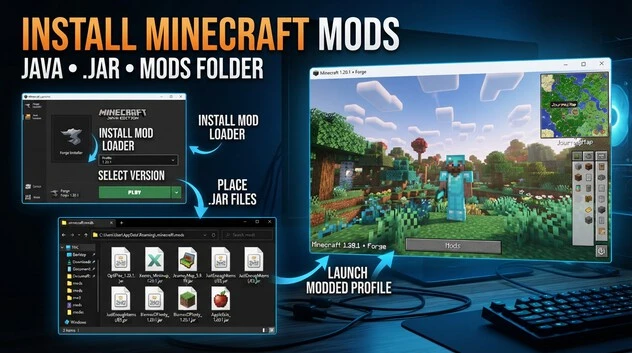
Step 1: Install the Required Mod Loader
First, install the loader required by your mod. Choose Fabric, Forge, or NeoForge based on the mod’s project page. The loader must support your Minecraft version.
Explore Minecraft CurseForge to discover compatible mods and enhance your Minecraft gameplay.
Step 2: Launch the Correct Minecraft Version
Open the Minecraft Launcher and select the required Minecraft version. Launch it once before adding mods. This helps create the necessary game files and confirms that the version runs correctly.
Step 3: Find the Minecraft mods Folder
On Windows, press Windows + R and enter:
%appdata%\.minecraft\mods
If the mods folder does not exist, create one with that exact name.
On macOS, the folder normally uses:
~/Library/Application Support/minecraft/mods
On Linux, use:
~/.minecraft/mods
Fabric’s official guide confirms these platform-specific locations.
Step 4: Download the Correct .jar Files
Download each mod from a trusted project page. Check the Minecraft version, mod loader, and dependencies before downloading.
For example, a Fabric mod must support your selected Fabric installation. Download any required library or API files too. Do not extract .jar mod files. Keep them as .jar files.
Step 5: Move Mods Into the Folder
Move the compatible .jar files into your mods folder. Fabric’s documentation confirms this workflow for Fabric mods.
Step 6: Launch the Modded Profile
Return to the Minecraft Launcher. Select the correct Fabric, Forge, or NeoForge profile, then start the game.
Step 7: Confirm the Mods Loaded
Check the game’s mod list or the loader’s information screen. Your installed mods should appear there. If a mod does not appear, recheck its version, loader, dependencies, and file location.
Installing Mods With CurseForge or a Mod Manager
A mod manager can simplify Minecraft Java mod installation. It handles profiles, mod files, and many compatibility checks for you.
Create a Minecraft Profile
Start by creating a Minecraft profile in your chosen mod manager. Select the required Minecraft version, mod loader, and profile name. CurseForge profiles include these settings along with the installed mods.
Find and Install a Mod
Search for the mod inside the platform or browse its available projects. Select a compatible mod and use the platform’s Install option. CurseForge can add the mod to a new or existing profile.
Check Compatibility Automatically
Supported managers can identify incompatible combinations before installation. CurseForge checks the mod’s Minecraft version and mod loader against the selected profile. It prevents incompatible combinations from being selected.
However, always review the mod’s project page yourself. Check dependencies, supported versions, and release details before launching the game.
When Manual Installation Makes Sense
Manual installation works well when you want direct control over your .jar files, mods folder, and profile setup. It also helps when a mod manager does not support a particular project.
For most beginners, a trusted mod manager can reduce setup steps. Manual installation remains useful when you need more control.
Best Minecraft Java Mods: Useful Categories and Examples
The best Minecraft Java mods depend on what you want to change. Some improve performance, while others add new tools, content, or gameplay systems.
Performance Mods
Minecraft performance mods focus on smoother gameplay and better resource use. Sodium targets rendering performance, while Lithium focuses on game logic optimization. These mods can help improve performance without changing Minecraft’s core gameplay significantly.
Graphics and Visual Mods
Visual mods improve how Minecraft looks or renders its world. Iris provides shader support for compatible setups, while other visual enhancement mods can improve rendering or visual details. Shaders themselves remain outside this article’s main scope.
Quality-of-Life Mods
Quality-of-life mods make everyday gameplay more convenient. AppleSkin provides additional food information, while Jade displays useful information about blocks and entities. Mod Menu makes installed mods easier to view and manage.
Inventory and Utility Mods
Inventory and utility mods improve item management and information access. Just Enough Items (JEI) and EMI help players view recipes and available items. Other utility mods can improve storage, organization, or inventory management.
Map and Navigation Mods
Map mods help players understand their surroundings and navigate explored areas. Xaero’s Minimap provides a compact map display, while Xaero’s World Map offers a broader view of discovered terrain.
Gameplay and Content Mods
Gameplay mods can add deeper changes to Minecraft. Create focuses on mechanical systems and automation. Farmer’s Delight expands farming and food-related gameplay. Alex’s Mobs adds new creatures, while Waystones provides convenient travel options.
Always check each mod’s supported Minecraft version, loader, and dependencies before downloading.
Minecraft Java Mods Not Working? Common Problems
When Minecraft Java mods are not working, compatibility issues usually provide the first place to investigate. Check these common problems before reinstalling everything.
Wrong Minecraft Version
A mod may support Minecraft 1.21.1 but not another 1.21 release. Check the exact game version listed on the mod’s project page.
Wrong Mod Loader
A Fabric mod cannot automatically run with Forge or NeoForge. Confirm that your selected profile uses the loader required by the mod.
Missing Dependency
Some mods need additional libraries or APIs. A missing required dependency can prevent the mod from loading. Check the project’s dependency list and install every required file.
Conflicting Mods
Two mods can conflict even when both support the same Minecraft version. Conflicts can cause crashes, errors, or unexpected behavior.
Game Crashes After Installation
Try these steps:
- Check the crash report or latest.log.
- Confirm your Minecraft version.
- Confirm the mod loader.
- Check all required dependencies.
- Remove the newest mod you installed.
- Test mods individually to identify the problem.
Fabric’s documentation recommends checking logs and crash reports when troubleshooting mod issues.
Mod Does Not Appear
Check that the .jar file sits inside the correct mods folder. Then confirm that you launched the correct profile and Minecraft version. Also check that the file supports your selected loader.
If the problem continues, test the installation with only the affected mod and its required dependencies.
How to Update or Remove Minecraft Java Mods
Updating Minecraft Java Mods
Before updating a mod, check its new release version and supported Minecraft version. Confirm that it supports your current Fabric, Forge, NeoForge, or Quilt setup. Review any dependency changes too. Back up important worlds before major mod or loader updates.
Download the compatible release from the mod’s trusted project page. Replace the older .jar file with the updated version.
Removing a Mod
Close Minecraft completely before removing a mod. Open your mods folder and delete the relevant .jar file. Then launch the correct modded profile and check your world.
If the removed mod added blocks, items, or other content, removing it can affect an existing world. Keep a backup before making changes.
Avoid Unnecessary Updates
A working mod setup does not need constant updates. Update when you need new features, fixes, or Minecraft version support. Always check compatibility before changing a stable setup.
Minecraft Java Mods FAQs
Can You Install Mods on Minecraft Java Edition?
Yes. Minecraft Java Edition supports third-party mods. You need a compatible Minecraft version, mod loader, mod files, and any required dependencies.
Are Minecraft Java Mods Free?
Many Minecraft Java mods are free to download and use. However, individual projects can have different terms. Always check the project’s official page for licensing or support information.
Where Should I Download Minecraft Java Mods?
Use established platforms such as Modrinth and CurseForge. Check the project’s author, Minecraft version, loader, dependencies, and release details before downloading.
What Is the Best Mod Loader for Minecraft Java?
There is no universal best loader. Choose Fabric, Forge, NeoForge, or Quilt based on the mods you want. The mod’s supported loader determines compatibility.
Can Fabric Mods Work With Forge?
No, not automatically. Fabric and Forge use different modding systems. A mod must specifically support Forge to work with a Forge installation. Check the project’s listed loaders.
Why Are My Minecraft Java Mods Not Working?
Check the Minecraft version, mod loader, dependencies, and .jar files. Also check for conflicting mods, incorrect folders, crashes, or a wrong launcher profile.
Do Minecraft Java Mods Work on Bedrock?
No. Java mods target Minecraft Java Edition and do not automatically work on Bedrock Edition. Bedrock uses a different add-on system for customization.
Do I Need Java to Install Minecraft Java Mods?
Minecraft Java Edition already uses Java, but you normally do not need to install Java separately for basic mod installation. Your launcher manages the required Java runtime.