Minecraft Forge Download
Minecraft Forge is a free modding API and mod loader for Minecraft Java Edition. It lets players run mods built for Forge. You need a Forge version that matches your Minecraft version. The official Forge site lists downloads for specific Minecraft releases.
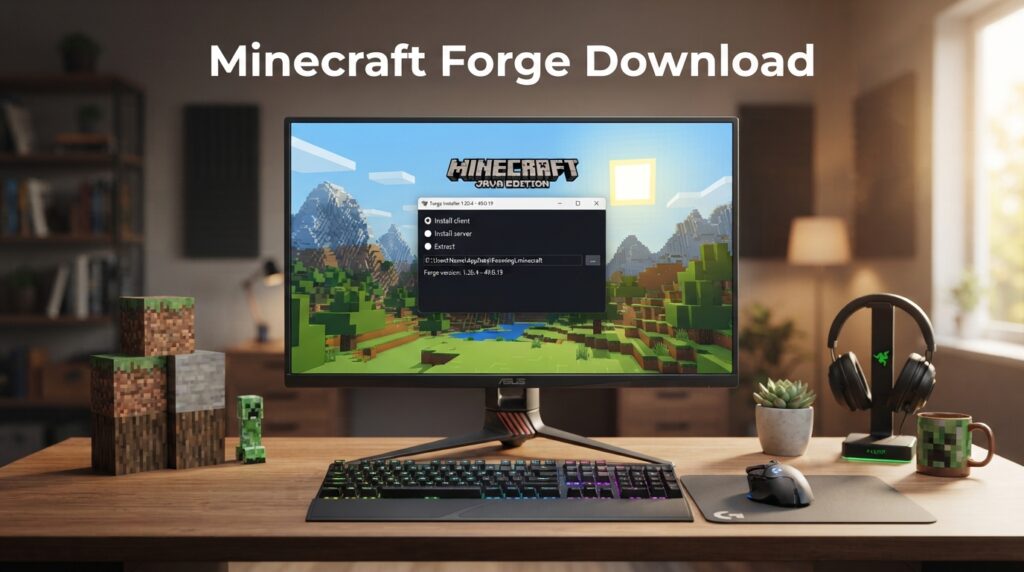
The Forge Installer helps install Forge for the Minecraft client. You can then select the Forge profile through the Minecraft Launcher.
This guide explains how to choose the right Forge version. It also covers the official Minecraft Forge download process and installation steps.
Always use the official Forge files site when downloading the installer. This helps you avoid modified or misleading download files.
Before installing, check your Minecraft version and Java requirements. These details can affect whether Forge launches correctly.
What Is Minecraft Forge?
Minecraft Forge Explained
Minecraft Forge is a modding framework for Minecraft Java Edition. It helps the game load and manage compatible mods.
Forge provides the tools that mods need to work with Minecraft. It also gives mod developers a common framework for building and supporting mods.
When you install Forge, it creates a Forge profile in the Minecraft Launcher. You can then launch Minecraft through that profile.
Forge works with specific Minecraft versions. Therefore, you should always match Forge with your Minecraft version.
What Can You Do With Forge?
Forge lets you run mods that support its mod loader. These mods can add new features, items, mechanics, or other changes.
You can create a separate modded Minecraft environment with Forge. This keeps your modded setup distinct from your normal game profile.
You can also select the Forge profile from the Minecraft Launcher. The game then loads Forge and its compatible mods.
Is Forge Available for Minecraft Bedrock?
No. Minecraft Forge targets Minecraft Java Edition.
Bedrock Edition uses a different add-on system. Forge does not install or manage Bedrock add-ons.
If you want to use Forge mods, make sure you own and launch the Java Edition. This distinction also matters when choosing your Forge download.
Minecraft Forge Download: Latest Version
Check Your Minecraft Version First
Before starting a Minecraft Forge download, check your Minecraft Java version. Forge releases target specific Minecraft versions. Your Forge version should match the Minecraft version you plan to play. The official Forge site provides separate download pages for different releases.
Latest vs Recommended Forge Build
Forge provides Latest and Recommended builds for supported Minecraft versions. The Latest build contains the newest Forge release for that version. The Recommended build provides a release that Forge currently recommends.
For example, the official Forge page currently lists 65.1.3 as Latest and 65.1.0 as Recommended for Minecraft 26.2.
Choose based on your Minecraft version and mod requirements. Do not assume the newest build always fits your setup.
Download the Forge Installer
Open the Minecraft Forge official download page for your Minecraft version. Then choose Installer under the required Forge build.
The Installer sets up Forge for Minecraft Java Edition. The MDK serves developers who create Forge mods. Most players need the Installer, not the MDK.
Minecraft Forge Version Compatibility
Forge and Minecraft Version Must Match
Forge versions connect to specific Minecraft releases. A Forge build for Minecraft 1.21.1 will not replace a Forge build for 1.20.1. Each version has its own Forge releases and installer files.
Always check your Minecraft Java version before downloading Forge. Then select the matching Forge version from the official files page. This step helps prevent launch errors and mod compatibility problems.
Popular Forge Versions
The official Forge files site lists many Minecraft version families. These include 26.x, 1.21.x, 1.20.x, and older releases. It provides separate pages for individual Minecraft versions.
For example, the Forge page for Minecraft 1.21.1 lists its own Forge builds and installers. The same applies to Minecraft 1.20.1 and other supported versions.
Choose Forge Based on Your Mods
Check the Minecraft version listed by each mod before installing it. Then choose Forge for that same Minecraft version. Also check any required mod dependencies.
This approach keeps your Forge setup compatible with the mods you plan to use.
Explore some of the most exciting Best Minecraft Modpacks to enhance your gameplay with new features, challenges, and adventures.
Java Requirements Before Installing Forge
Why Java Matters
Minecraft Forge uses the Java environment required by your Minecraft version. Forge’s official guidance lists different Java versions for different Minecraft releases.
For example, Minecraft 26.1 and newer requires Java 25. Minecraft 1.20.6 through 1.21.11 requires Java 21. Older versions can require Java 17, 16, or 8.
Check Your Java Version
Before installing Forge, check which Java version your system uses. On Windows, open Command Prompt and run:
java -version
The command displays your installed Java version. Compare that result with the requirement for your Minecraft version.
You do not need to install a separate Java version if your current setup already meets the requirement.
Use the Java Version Required by Your Minecraft Version
Always follow the Java requirement for your selected Minecraft version. Do not choose Java based only on the newest available release.
Forge’s official documentation links each supported Minecraft range to its required Java version. Using the correct Java environment can help prevent installer and launch errors. (github.com)
If Forge does not open correctly, check Java before changing other installation settings.
What You Need Before Minecraft Forge Installation
Before installing Minecraft Forge, check a few basic requirements. This helps prevent common setup problems.
Minecraft Java Edition
Minecraft Forge works with Minecraft Java Edition. Make sure Java Edition is installed on your PC before starting. You should also know which Minecraft version you plan to use with Forge.
Minecraft Launcher
The official Minecraft Launcher manages your game installations and profiles. After Forge installs, the launcher can provide the Forge profile for starting modded Minecraft.
Correct Forge Installer
Download the Forge Installer for your exact Minecraft version. Do not use an installer for a different game version. Check the version before opening the file.
Backup Important Worlds
Back up important Minecraft worlds before using Forge or adding mods. Mods can sometimes cause crashes or world issues. A backup gives you a safe copy if something goes wrong.
How to Download Minecraft Forge
Open the Official Forge Download Page
Start with the official Minecraft Forge Files website. Forge provides separate download pages for supported Minecraft versions. These pages list the available Forge builds and download options.
Select Your Minecraft Version
Choose the Minecraft version you want to use with Forge. Match it with your installed Java Edition version and your intended mods. The Forge files page lists separate releases, such as 1.21.1 and 1.20.1.
Choose Latest or Recommended
Forge may show Latest and Recommended builds for a Minecraft version. Latest provides the newest Forge build. Recommended identifies the release Forge recommends. Check your mods before choosing either option.
Select Installer
Choose Installer from the available downloads. Players generally need the Installer to set up Forge. The MDK targets developers who want to create Forge mods. Forge lists both options on its download pages.
Save the Forge Installer
Save the downloaded Forge installer in an easy-to-find location. You will open this file during installation. Use the official Forge website instead of random download sites. This reduces the risk of downloading modified or unsafe files.
How to Install Minecraft Forge Step by Step
Once you have the correct Forge Installer, you can install Forge on your PC. Follow these steps in order.
Close Minecraft and the Launcher
Close Minecraft before running the installer. Also close the Minecraft Launcher. This prevents active game files from interfering with the Forge installation.
Open the Forge Installer
Find the downloaded Forge .jar file on your computer. Double-click the file to open it with Java. If your system does not open the file, check that the required Java version is installed. The installer window should appear after Java starts the file.
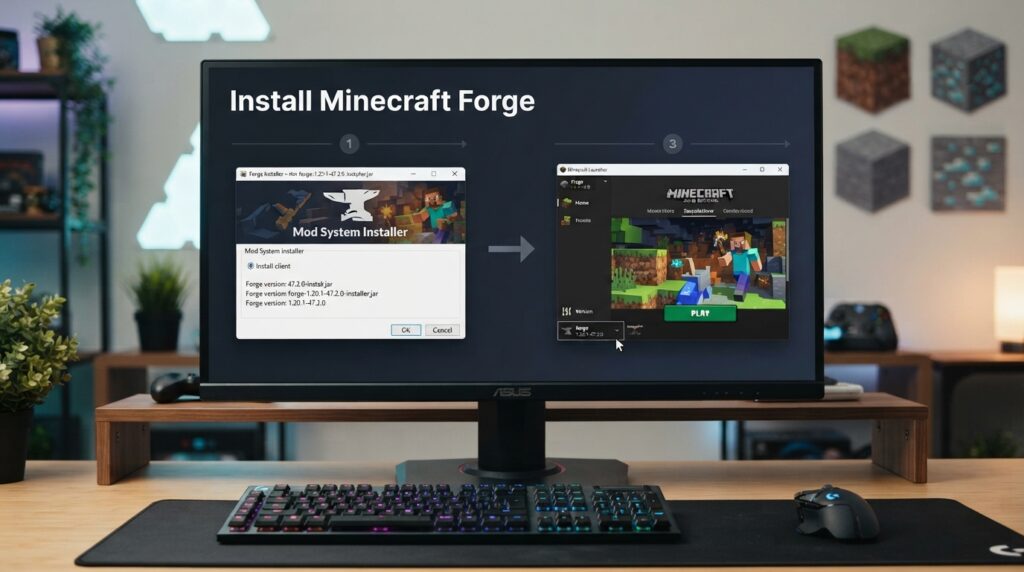
Select “Install Client”
Select Install Client in the Forge Installer. This option installs Forge for your local Minecraft game. Players should use this option when they want to play Forge mods on their own computer. The server installation option serves a different purpose.
Confirm the Minecraft Installation Directory
The installer normally detects your Minecraft installation directory automatically. Check the displayed path before continuing. Make sure it points to the Minecraft directory used by your Java Edition installation. Change the location only when your Minecraft files use a different directory.
Start the Forge Installation
Click the installation button to begin. The Forge Installer will place the required files in the selected Minecraft directory. Wait until the process finishes. Do not close the installer while it works.
Open Minecraft Launcher
After installation finishes, open the official Minecraft Launcher. Sign in to the account that owns Minecraft Java Edition. The launcher should detect the new Forge installation.
Select the Forge Profile
Open the Java Edition installation or profile selector in the launcher. Look for the Forge installation you just added. Select the Forge version that matches your installed Minecraft version. Check the version carefully before launching.
Launch Minecraft With Forge
Start Minecraft using the selected Forge profile. The launcher may download or prepare additional files during the first launch. Give this process time to finish. Minecraft should then start with the Forge environment loaded.
Confirm Forge Installed Successfully
Check the Minecraft title screen after the game opens. Forge information should appear in the game interface or installation details. You can also check the selected launcher installation to confirm the correct Forge version is active. If Forge loads without an error, the installation is ready for compatible mods.
How to Install Forge Mods After Forge Setup
After Forge works correctly, you can add compatible Forge mods to your Minecraft setup. Always check compatibility before adding any mod.
Find the Minecraft Mods Folder
Forge uses the mods folder to load mod files when Minecraft starts. You can find this folder inside your Minecraft directory. If the folder does not exist, you may need to create a folder named mods in the correct Minecraft directory.
Use Mods Compatible With Your Forge Version
Check each mod’s listed Minecraft version before installing it. Also confirm that the mod supports Forge rather than another loader. Some mods require additional mod dependencies to work correctly. Install those dependencies when the mod author lists them as required.
Launch Minecraft With Forge
Place compatible mod files inside the mods folder. Then open Minecraft using your Forge profile. Forge will detect supported mods during startup. An incompatible mod can cause crashes or prevent Minecraft from launching. If that happens, remove the problematic mod and check its version requirements.
Common Minecraft Forge Installation Problems
Forge installation can sometimes fail because of Java, version mismatches, or incorrect files. Check the basics before trying advanced fixes.
Forge Installer Will Not Open
First, check your installed Java version. Make sure it meets the requirement for your Minecraft version. Also verify that you downloaded the correct Forge .jar Installer. A damaged or incorrect file can prevent the installer from opening.
Forge Does Not Appear in Minecraft Launcher
Confirm that the Forge Installer completed successfully. Then restart the Minecraft Launcher and check your Java Edition installations. Make sure you selected the correct Minecraft directory during installation. The Forge profile should use the same Minecraft version you installed.
Forge Crashes When Minecraft Starts
Check the Minecraft and Forge versions first. Then review your installed mods for compatibility issues. Remove recently added mods if necessary. Also check whether any installed mod requires additional dependencies. Different crashes can have different causes.
Wrong Minecraft or Forge Version
Keep the Minecraft version, Forge version, and mod version aligned. A mod built for one Minecraft release may not work with another. Do not mix Forge builds or mods without checking their stated compatibility.
Java or Installation Errors
Verify the Java version required by your Minecraft release. Then recheck the Minecraft installation directory in the Forge Installer. If the problem continues, download the correct Forge Installer again and repeat the installation process.
Minecraft Forge Download Safety and Trust
A safe Minecraft Forge download starts with the correct source. Use the official Forge files site whenever possible.
Download Forge From the Official Source
The official Minecraft Forge Files site provides Forge builds and installers for supported Minecraft versions. Use this source instead of third-party download pages. Avoid modified Forge installers because you cannot easily verify what they contain.
Check the File and Version
Before opening the download, confirm your Minecraft version. Check that you selected Installer, not MDK. The downloaded file should match the Forge release you selected on the official files page.
Avoid Fake Forge Downloads
Be careful with pages that use multiple misleading download buttons. Some unofficial sites may present modified files as Forge installers. Check the website address before downloading. Using the official Forge files site keeps the download process simpler and easier to verify.
This section supports Google trust/E-E-A-T because the article clearly identifies the authoritative source instead of presenting an arbitrary third-party download.
Frequently Asked Questions About Minecraft Forge
What is Minecraft Forge?
Minecraft Forge is a free modding framework and mod loader for Minecraft Java Edition. It lets players run mods made for compatible Forge versions.
Is Minecraft Forge free?
Yes. Minecraft Forge is free to download and use. Get the Forge Installer from the official Forge files website.
Is Minecraft Forge for Java or Bedrock?
Minecraft Forge is designed for Java Edition. It does not provide the mod-loading system used by Minecraft Bedrock Edition.
Which Forge version should I download?
Download Forge for the exact Minecraft version you plan to play. Then check your mods for their required Minecraft and Forge versions.
Should I choose Latest or Recommended Forge?
Latest provides the newest Forge build for a Minecraft version. Recommended identifies the release Forge recommends. Check your mods before choosing between them.
How do I install Minecraft Forge?
Download the correct Forge Installer, open it with the required Java version, and select Install Client. Then select the Forge profile in Minecraft Launcher.
Why is Forge not showing in Minecraft Launcher?
Check that installation completed successfully and restart the launcher. Also verify the Minecraft directory and selected Forge installation. A wrong version can prevent the expected profile from appearing.
Can I use Forge mods with any Minecraft version?
No. Forge mods usually target specific Minecraft versions and loaders. Check the mod’s Minecraft version, Forge requirement, and dependencies before installing it.