Minecraft Pocket Edition (MCPE): Complete Guide for Mobile Players
Minecraft Pocket Edition, often called MCPE, brings the world of Minecraft to mobile devices. It lets players build, explore, craft, and survive from almost anywhere. Whether you use Android or iOS, MCPE delivers the same block-building adventure that made Minecraft one of the world’s most popular games.
Mojang first launched Minecraft Pocket Edition for mobile users who wanted Minecraft on the go. Early versions included limited features and smaller worlds. Over time, Mojang added new content, improved Touch Controls, and introduced popular features such as Survival Mode, Creative Mode, Multiplayer, Redstone, and The Nether.
As development continued, Minecraft Pocket Edition became part of the larger Bedrock Edition family. This change allowed Cross-platform Play between mobile devices, consoles, and Windows PCs. Players could now join friends across different platforms while enjoying a shared gameplay experience.
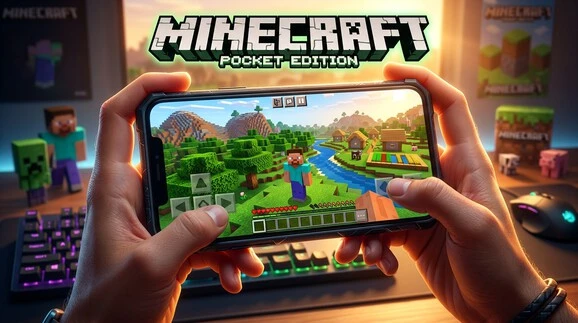
Many players still use the name MCPE today. The term remains popular among long-time fans, content creators, and gaming communities. It also appears in searches for mods, addons, maps, texture packs, skins, servers, and game updates.
Minecraft Pocket Edition offers much more than simple building. Players can gather resources, use Crafting recipes, battle Mobs, discover unique Biomes, and explore endless worlds generated from Seeds. Every world creates new opportunities for adventure and creativity.
This guide covers everything you need to know about Minecraft Pocket Edition. You will learn how to download and install the game, understand different game modes, use Multiplayer features, explore The Nether, build with Redstone, customize your experience with addons, and find the best tips for getting started.
What Is Minecraft Pocket Edition?
Definition of MCPE
Minecraft Pocket Edition (MCPE) is the mobile version of Minecraft. Mojang created it for smartphones and tablets. It gives players access to the same block-building experience found in other Minecraft editions.
Players can explore vast worlds, collect resources, craft items, and build structures. MCPE includes popular features such as Survival Mode, Creative Mode, Multiplayer, and Cross-platform Play.
The game runs on Android and iOS devices. Its Touch Controls make building, mining, and combat easy on a touchscreen. Players can also connect controllers on supported devices for a different gameplay experience.
MCPE supports many customization options. Players can install addons, use texture packs, change skins, join servers, and explore custom maps. These features keep the game fresh and exciting.
The History of Minecraft Pocket Edition
Mojang released Minecraft Pocket Edition in 2011. The first version offered basic gameplay and limited features. Early players could build structures, but many popular mechanics were missing.
Over the years, Mojang added major updates that expanded the game. New features introduced Crafting recipes, Survival Mode systems, Mobs, Biomes, and Multiplayer support. Players gained access to larger worlds and more gameplay options.
Later updates brought Redstone mechanics and The Nether dimension to mobile devices. These additions made MCPE feel much closer to the PC version.
As technology improved, Mojang unified several Minecraft versions under a single platform. This move led to the creation of Bedrock Edition. The change allowed players on mobile, console, and Windows devices to play together.
Although the official name changed, many players continued using the term MCPE. The name remains popular across gaming communities, guides, and content platforms Minecraft Download Latest.
Explore our guide to Minecraft Patch 1.21.81 to learn about the latest changes, features, and download details.
Minecraft Pocket Edition vs Bedrock Edition
Many players use MCPE and Bedrock Edition as if they mean the same thing. The terms are closely related, but they describe different stages of Minecraft’s development.
| Feature | Pocket Edition | Bedrock Edition |
| Purpose | Mobile version of Minecraft | Unified version across multiple platforms |
| Developer | Mojang | Mojang |
| Platforms | Android and iOS | Android, iOS, Windows, Xbox, PlayStation, Nintendo Switch |
| Multiplayer | Mobile-focused multiplayer | Full cross-platform multiplayer |
| Updates | Earlier update system | Shared updates across supported platforms |
| Marketplace | Limited in early versions | Full Marketplace integration |
| Cross-platform Play | Limited in early releases | Built for cross-platform gaming |
| Current Status | Common community term | Official version used today |
Today, Minecraft Pocket Edition forms part of Bedrock Edition. Mobile players still enjoy the same core gameplay. They can gather resources, battle Mobs, discover Seeds, build with Redstone, and explore unique Biomes alongside friends on different devices.
Discover our guide to Minecraft Patch Download APK for the latest patch details, new features, and installation information.
Features of Minecraft Pocket Edition
Survival Mode
Survival Mode offers the classic Minecraft experience. Players start with limited resources and must gather materials to survive. Wood, stone, coal, and food become essential during the early game. Crafting tools helps players collect resources faster and explore new areas.
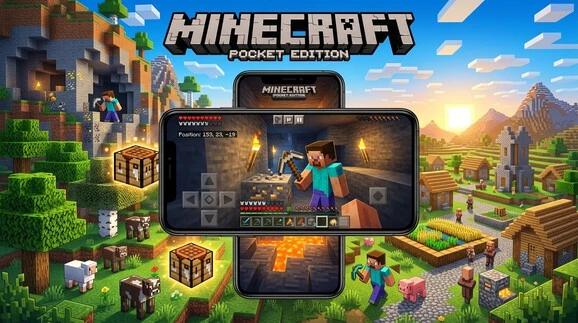
The hunger system adds an extra challenge. Players need food to restore hunger and maintain health. Hunting animals, farming crops, and fishing provide reliable food sources.
Health management plays a key role in survival. Falling, drowning, fire, and enemy attacks can reduce health quickly. Smart planning and proper equipment improve survival chances.
Hostile Mobs appear during the night and in dark locations. Zombies, Skeletons, Creepers, and Spiders create constant danger. Players often build shelters before sunset to stay safe.
Creative Mode
Creative Mode removes survival limits and focuses on building. Players receive unlimited blocks and resources from the inventory. There is no need to gather materials or craft basic items.
Flying makes construction much easier. Players can reach high places instantly and view projects from different angles. This feature helps create detailed structures and large-scale builds.
Instant building encourages creativity. Players can design houses, cities, castles, and custom worlds without resource restrictions. Many community maps begin in Creative Mode.
Multiplayer Gameplay
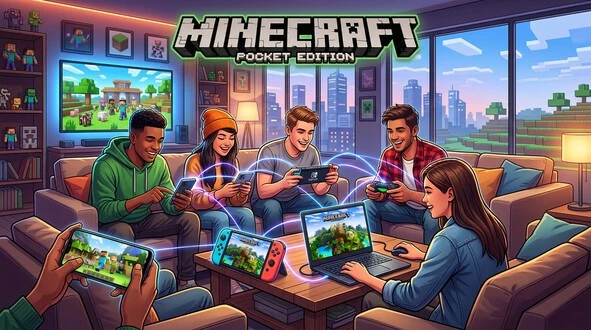
Minecraft Pocket Edition supports several multiplayer options. Local Wi-Fi multiplayer lets nearby players join the same world. This feature works well for friends and family.
Online multiplayer connects players from different locations. Players can join public servers, explore community worlds, and participate in mini-games.
Realms support offers private online worlds managed by the owner. Friends can join even when the host is offline.
Cross-platform play allows mobile players to connect with users on Windows, Xbox, PlayStation, and Nintendo Switch through Bedrock Edition.
Touch Controls
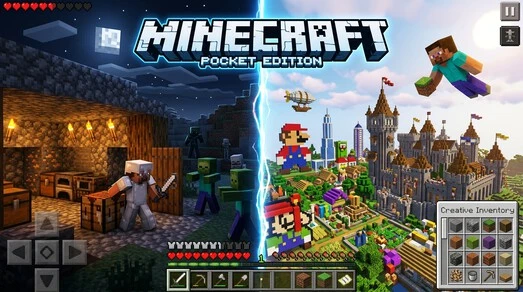
Touch Controls help players interact with the game on mobile devices. Movement controls allow walking, running, and jumping with simple screen inputs.
Inventory controls make item management quick and convenient. Players can move, equip, and organize items with a few taps.
Building mechanics remain simple and responsive. Players can place blocks, break materials, and create structures directly from the touchscreen.
How to Download Minecraft Pocket Edition
Download on Android
Android users can download Minecraft Patch Download APK from the Google Play Store. Open Google Play, search for Minecraft, and select the official version published by Mojang. Complete the purchase and tap Install. The game downloads automatically to your device.
Requirements: Android device, internet connection, Google account, and enough storage space.
Download on iPhone and iPad
iPhone and iPad users can get Minecraft through the App Store. Open the App Store, search for Minecraft, choose the official app from Mojang, and complete the purchase. Tap Download to begin installation.
Requirements: Compatible iPhone or iPad, Apple ID, internet connection, and available storage.
System Requirements
| Platform | Minimum Requirement |
| Android | Android 8.0 or later |
| iPhone/iPad | iOS 13 or later |
Is Minecraft Pocket Edition Free?
Minecraft Pocket Edition is not free. Players must purchase the game before downloading it. After purchase, they receive access to the full mobile version and future updates.
Safe Download Methods
Always download Minecraft from official stores. Use Google Play Store for Android devices and the App Store for iPhone or iPad. Avoid unofficial websites, modified APK files, and unknown download sources. These files may contain malware, cause security issues, or damage your device.
How to Install Minecraft Pocket Edition
Installation Steps on Android
Installing Minecraft Pocket Edition on Android takes only a few minutes. First, download the game from the Google Play Store. Once the download finishes, tap Open to launch the game. Sign in with a Microsoft account to access Multiplayer features, Realms, and Cross-platform Play. After setup, create a new world and start playing.
Installation Steps on iOS
iPhone and iPad users can install Minecraft through the App Store. After purchasing the game, tap Get or Download. Wait for the installation to finish, then open the app. Sign in with your Microsoft account to unlock online features. You can then create a world, adjust settings, and begin exploring.
Common Installation Problems
Some players face installation issues during setup. Insufficient storage remains the most common problem. Free up space and try again. A weak internet connection can also interrupt downloads. Restarting the device often fixes temporary errors. If the game fails to open, update your operating system and reinstall Minecraft.
How to Update Minecraft Pocket Edition
Keeping Minecraft updated gives you access to new features, bug fixes, and performance improvements. Android users can update the game through the Google Play Store. iPhone and iPad users can update it through the App Store. Enable automatic updates to receive the latest Minecraft version as soon as Mojang releases it. Regular updates also add new content, improve gameplay, and keep Multiplayer compatibility working smoothly.
إذا كنت تتساءل كيف تلعب ماين كرافت، يمكنك الاطلاع على دليلنا لمعرفة أساسيات اللعب وأهم النصائح للمبتدئين.
Game Modes in Minecraft Pocket Edition
Survival Mode Explained
Survival Mode tests your skills and decision-making. Players start with empty inventories and must gather resources to survive. Wood, stone, food, and minerals become valuable from the first day. You must manage health, hunger, and shelter while avoiding hostile Mobs. Crafting tools, weapons, and armor helps you stay alive and progress through the game.
Creative Mode Explained
Creative Mode focuses on building and creativity. Players receive unlimited blocks and items without collecting resources. Hunger and health do not affect gameplay. You can fly across the world and build structures quickly. Many players use this mode to create cities, castles, and custom maps.
Adventure Mode
Adventure Mode offers a different experience. It works best with custom maps created by other players. The mode limits certain actions, including breaking and placing blocks. These restrictions allow map creators to design quests, puzzles, and story-driven adventures. Many Multiplayer servers use Adventure Mode for special events and mini-games .
Spectator Mode
Spectator Mode lets players observe the game world without interacting with it. You can move through blocks, explore hidden areas, and watch other players. This mode helps content creators, server admins, and players who want to study builds or gameplay without interruptions.
Which Mode Should Beginners Choose?
Most beginners should start with Survival Mode. It teaches the core mechanics of Minecraft Pocket Edition, including Crafting, resource gathering, combat, and exploration. New players learn how Biomes, Mobs, and tools work together. After understanding the basics, Creative Mode becomes a great place to practice building skills and test new ideas without limits.
Core Gameplay Mechanics
Crafting System
Crafting sits at the heart of Minecraft Pocket Edition. Players combine materials to create tools, weapons, armor, and useful items. Wood becomes planks, planks become sticks, and sticks help create basic tools. As you progress, better resources unlock stronger equipment and advanced recipes.
Mining Resources
Mining provides the materials needed for survival and building. Players dig underground to collect coal, iron, gold, redstone, diamonds, and other resources. Different tools mine blocks at different speeds. Exploring caves often reveals rare ores and valuable loot. Mining also supports crafting, trading, and progression.
Building Structures
Building allows players to shape the world around them. Simple shelters offer protection during the first night. Later, players can create houses, farms, castles, bridges, and entire cities. Creative building uses different block types, designs, and layouts to produce unique structures.
Farming and Food
Food helps maintain hunger and restore health. Players can hunt animals, catch fish, or grow crops for a steady food supply. Wheat, carrots, potatoes, and beetroot grow well on farmland. Farming provides reliable resources and reduces the need for constant food gathering.
Combat Basics
Combat protects players from hostile Mobs and other dangers. Swords, axes, bows, and armor improve survival chances. Zombies, Skeletons, Creepers, and Spiders often attack during the night or inside dark caves. Good timing, movement, and equipment help players win battles and avoid damage.
Day and Night Cycle
The day and night cycle changes gameplay conditions every few minutes. Daytime offers a safer environment for exploration, mining, and building. Night brings stronger challenges as hostile Mobs appear across the world. Many players use daylight to gather resources and spend nights fighting enemies or working inside their base.
Mobs in Minecraft Pocket Edition
Mobs bring life and challenge to Minecraft Pocket Edition. They appear throughout different Biomes and play an important role in survival and progression.
Passive Mobs
Passive Mobs do not attack players. Cows provide leather and beef. Sheep drop wool for beds and decoration. Chickens supply feathers, eggs, and food. These animals help players gather essential resources during the early game.
Neutral Mobs
Neutral Mobs stay peaceful until provoked. Endermen become hostile when players stare directly at them. They can teleport and deal heavy damage. Wolves remain friendly and can become loyal companions after taming.
Hostile Mobs
Hostile Mobs attack players on sight. Zombies appear in dark areas and travel in groups. Skeletons use bows to attack from a distance. Creepers explode when they get close. Spiders move quickly and can climb walls.
Best Strategies for Surviving Mobs
Carry weapons and food at all times. Wear armor for extra protection. Place torches around your base to reduce mob spawns. Sleep at night when possible and avoid exploring caves without proper equipment.
Biomes in Minecraft Pocket Edition
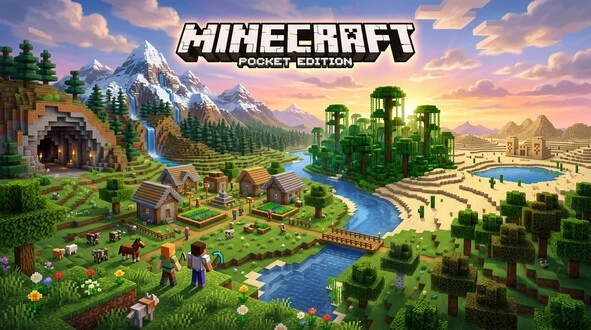
Biomes shape the world of Minecraft Pocket Edition. Each biome offers different terrain, resources, animals, and challenges. Learning about biomes helps players choose better locations for survival and exploration.
Plains Biome
Plains feature open land, villages, and farm animals. They provide an excellent starting area for beginners.
Desert Biome
Deserts contain sand, cacti, and desert villages. Players can also discover desert temples with valuable loot.
Forest Biome
Forests offer large amounts of wood and wildlife. They make resource gathering easy during the early game.
Jungle Biome
Jungles contain dense trees, bamboo, and unique animals. Players often visit jungles for rare resources and exploration.
Snow Biome
Snow biomes feature cold weather, frozen rivers, and snowy landscapes. Survival becomes harder due to limited food sources.
Rare Biomes
Rare biomes include Mushroom Fields, Badlands, and Ice Spikes. These locations contain unique blocks and uncommon terrain.
Choosing the Best Spawn Biome
Most beginners benefit from spawning in Plains or Forest biomes. These areas provide food, wood, animals, and space for building. A good spawn biome makes survival easier and supports faster progression during the first days of gameplay.
Exploring The Nether
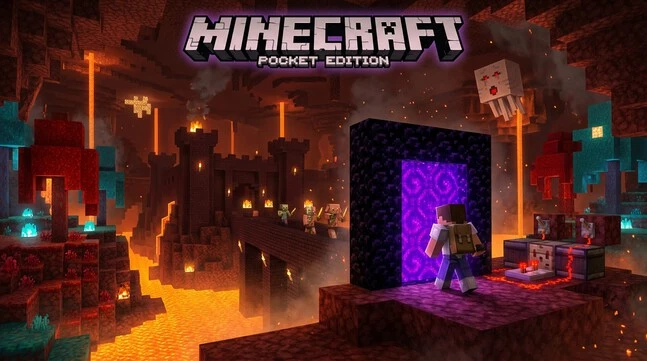
The Nether is a dangerous dimension in Minecraft Pocket Edition. It features lava oceans, unique blocks, valuable resources, and powerful Mobs. Many players visit the Nether to collect rare materials and advance through the game.
What Is The Nether?
The Nether exists separately from the Overworld. Its environment contains lava, dark terrain, and challenging enemies. Travel through this dimension opens access to exclusive items and locations.
How to Build a Nether Portal
Players need Obsidian blocks and a Flint and Steel tool. Build a rectangular frame with Obsidian, then light the center. The portal activates and connects to the Nether.
Nether Resources
The Nether contains important resources such as Nether Quartz, Glowstone, Ancient Debris, and Netherite materials. These items support crafting, decoration, and equipment upgrades.
Nether Mobs
Several unique Mobs live in the Nether. Common examples include Ghasts, Piglins, Hoglins, Blazes, and Magma Cubes. Each mob presents different challenges and rewards.
Survival Tips
Bring strong armor, weapons, food, and extra blocks before entering. Mark important locations to avoid getting lost. Watch for lava at all times. Carry a shield and avoid attacking Piglins without proper preparation. Careful planning greatly improves survival in this hostile dimension.
Understanding Redstone
Redstone is one of the most powerful features in Minecraft Pocket Edition. It works like electricity and allows players to create machines, traps, and automated systems. Many advanced builds rely on Redstone to function.
What Is Redstone?
Redstone is a resource found underground. Players mine Redstone ore and use it to power different devices and mechanisms.
Basic Redstone Components
Common components include Redstone Dust, Redstone Torches, Levers, Buttons, Pressure Plates, Repeaters, and Pistons. Each component serves a specific purpose in a circuit.
Beginner Redstone Builds
New players often start with automatic doors, hidden entrances, and simple lighting systems. These projects teach basic Redstone mechanics without requiring complex designs.
Automated Farms
Redstone helps automate farming tasks. Players can create crop farms, animal farms, and item collection systems. Automation saves time and improves resource production in long-term survival worlds.
Minecraft Pocket Edition Seeds
Seeds help generate unique worlds in Minecraft Pocket Edition. Each seed creates a specific map layout, including Biomes, villages, structures, and terrain features. Players use seeds to start adventures in customized worlds.
What Are Seeds?
A seed is a code that controls world generation. Entering the same seed always creates the same world layout.
How to Use Seeds
Create a new world and enter the seed code in the world settings. The game then generates the selected world.
Best Survival Seeds
Survival seeds often provide villages, caves, forests, and nearby resources. These features support faster progression.
Best Village Seeds
Village seeds place players near settlements. Villages offer food, shelter, trading opportunities, and useful loot.
Best Adventure Seeds
Adventure seeds include unusual terrain, large caves, rare Biomes, and challenging environments for exploration.
Best Seeds for Beginners
Beginners should choose seeds with nearby villages, open Plains, and abundant resources. These worlds provide a smoother introduction to Minecraft Pocket Edition and make early survival much easier.
Minecraft Pocket Edition Servers
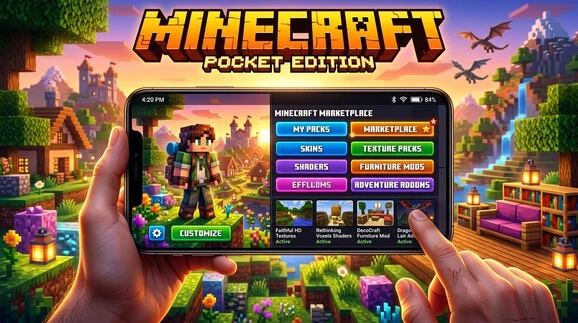
Minecraft Pocket Edition servers allow players to connect with others in shared online worlds. These servers offer unique game modes, community events, custom maps, and multiplayer activities that go beyond standard gameplay.
What Are MCPE Servers?
MCPE servers are online worlds hosted by individuals or organizations. Players can join these servers to build, compete, explore, and interact with the Minecraft community .
How to Join Servers
Open Minecraft Pocket Edition and select the Servers tab from the main menu. Choose a featured server or add a custom server using its address and port. Once connected, create a profile and start playing.
Best Minecraft Pocket Edition Servers
Popular servers often include Survival, Skyblock, Creative, Prison, and Mini-Game modes. Many players enjoy servers that offer active communities, regular updates, and unique gameplay experiences. The best server depends on your preferred play style.
Safety Tips for Multiplayer
Use strong account security and avoid sharing personal information. Join trusted servers with active moderation. Be respectful toward other players and report harmful behavior when necessary. Parents should monitor younger players during online interactions to ensure a safe multiplayer experience.
Minecraft Pocket Edition Mods and Addons
What Are Mods?
Mods change gameplay, add features, and introduce new items, creatures, or mechanics.
What Are Addons?
Addons customize Minecraft Pocket Edition without changing core game files.
How to Install Mods
Download compatible files, follow instructions, and place them in the correct folders.
How to Install Addons
Import addon files through Minecraft and activate them in world settings.
Best MCPE Mods
Popular choices include furniture mods, shader packs, and adventure expansions.
Best Addons for Beginners
Start with simple addons that improve animals, tools, villages, and survival gameplay while keeping controls easy to learn and use every day for fun.
Texture Packs and Skins
What Are Texture Packs?
Texture packs change the appearance of blocks, items, and environments. They create different visual styles without changing gameplay.
Installing Texture Packs
Download a compatible texture pack, import it into Minecraft, and activate it through settings.
Best Texture Packs
Popular options include realistic packs, cartoon styles, PvP packs, and HD textures.
What Are Skins?
Skins change your character’s appearance. Players can choose from thousands of unique designs.
How to Change Skins
Open the dressing room, select a skin, customize your character, and save the changes. New skins appear instantly in-game.
Marketplace and Minecoins
What Is Minecraft Marketplace?
Minecraft Marketplace is the official in-game store for Minecraft Pocket Edition and Bedrock Edition. It offers content created by trusted community creators and development teams.
What Can You Buy?
Players can purchase maps, skins, texture packs, adventure worlds, mini-games, and mash-up packs. New content appears regularly, giving players fresh ways to customize their gameplay experience.
Understanding Minecoins
Minecoins are the virtual currency used in Minecraft Marketplace. Players buy Minecoins with real money and spend them on digital content. Minecoins work across supported Bedrock Edition platforms, making purchases easy to manage.
Are Marketplace Purchases Worth It?
Marketplace purchases can add value for players who want premium content. Many packs offer unique worlds, professional designs, and exclusive features. However, Minecraft also provides access to free community content. The best choice depends on your budget, interests, and how often you use custom maps, skins, or texture packs.
Minecraft Pocket Edition Tips and Tricks
Beginner Tips
Start by gathering wood and creating basic tools. Build a shelter before nightfall and keep food available. Learn essential Crafting recipes early.
Building Tips
Plan your design before placing blocks. Use different materials to create depth and detail. Good lighting improves both appearance and safety.
Survival Tips
Carry food, weapons, and extra tools during exploration. Sleep regularly to avoid hostile Mobs. Keep valuable resources stored in chests.
Mining Tips
Bring torches when exploring caves. Mine at different depths to find valuable ores. Always carry spare pickaxes and watch for lava.
Multiplayer Tips
Play on trusted servers and communicate respectfully with other players. Protect your account with a secure password. Teamwork helps complete projects faster and makes exploration more enjoyable. Learning from experienced players can also improve your building, survival, and combat skills.
How to Improve Minecraft Pocket Edition Performance on Android
Minecraft Pocket Edition is designed for mobile gameplay, but performance can vary depending on the Android device, available memory, storage space, graphics settings, and the amount of custom content installed. If Minecraft feels slow, takes longer to load, or experiences lag and crashes, several practical steps can help improve the overall experience.
Check Your Device Before Playing
Before troubleshooting Minecraft Pocket Edition, make sure your Android device has enough available storage and meets the requirements of the installed Minecraft version.
Device performance can affect:
- World loading times
- Frame rates
- Gameplay responsiveness
- Multiplayer stability
- Performance when using resource packs or addons
Older devices may experience slower performance when running newer Minecraft releases or larger worlds.
Reduce Minecraft Graphics Settings
Graphics settings can affect how smoothly Minecraft runs on a mobile device. If you experience lag or reduced frame rates, lowering graphics-related settings can help reduce the workload on your device.
Reducing Render Distance is one practical step for players experiencing performance problems. A lower render distance means the game does not need to display as much of the surrounding world at once.
Try adjusting your settings gradually until you find a balance between visual quality and smooth gameplay.
Close Background Applications
Other applications running on your Android device can use system resources while Minecraft is running.
Before starting a large Minecraft world or Multiplayer session:
- Close unnecessary background applications.
- Restart your device if performance remains poor.
- Open Minecraft again.
- Test the same world to see whether performance improves.
This simple process can help identify whether temporary device resource usage is contributing to lag.
Keep Minecraft Updated
Regular Minecraft updates can include new features, bug fixes, gameplay improvements, and performance enhancements. Keeping Minecraft Pocket Edition updated through the appropriate app store can help maintain compatibility with current content.
However, players who rely heavily on addons, texture packs, resource packs, or custom maps should check compatibility before updating.
A new Minecraft version may require custom content to be updated as well.
Check Addons and Resource Packs
Custom content can change the way Minecraft looks and plays. Addons, texture packs, and resource packs can also create compatibility problems after an update.
If Minecraft starts crashing or displaying missing textures after installing new content, temporarily disable the recently added content and test the game again.
A useful troubleshooting approach is to test addons individually. This makes it easier to identify which piece of custom content may be causing the problem.
Reduce Unnecessary Custom Content
Minecraft Pocket Edition supports many customization options, including:
- Addons
- Texture packs
- Resource packs
- Custom maps
- Skins
These features can make the game more personalized, but players experiencing performance problems should test Minecraft without unnecessary custom content.
If the game runs normally without a particular addon or resource pack, check whether the creator provides a version compatible with your installed Minecraft release.
Free Up Storage Space
Available storage is important for Minecraft because the game uses space for its installation, updates, saved worlds, and additional content.
If your device is running low on storage, remove unnecessary files or applications before attempting another Minecraft update or installation.
Keeping sufficient free space can also help prevent installation problems when downloading a new Minecraft version.
Improve Multiplayer Performance
Multiplayer performance can be affected by internet stability as well as Minecraft version compatibility.
If you experience problems while playing on a server:
- Check your Wi-Fi or mobile data connection.
- Restart Minecraft.
- Confirm that your Minecraft version matches the server requirements.
- Make sure required addons or resource packs are compatible.
- Try connecting again after restarting the game.
A version mismatch can prevent players from joining multiplayer servers even when Minecraft is installed correctly.
What to Do If Minecraft Still Lags
If Minecraft Pocket Edition continues to lag after adjusting settings and closing background applications, work through the troubleshooting process systematically.
First, restart the Android device and check available storage. Next, reduce graphics settings and render distance. Then test the game without recently installed addons or resource packs.
If the problem continues, verify that Minecraft and Android are updated. Reinstalling Minecraft may also help when corrupted files are responsible for crashes or other problems.
Before reinstalling or changing versions, make sure important Minecraft worlds are backed up.
Best Performance Checklist for MCPE
For a smoother Minecraft Pocket Edition experience on Android:
- Check your device compatibility.
- Keep enough free storage available.
- Close unnecessary background applications.
- Lower graphics settings when experiencing lag.
- Reduce Render Distance if needed.
- Keep Minecraft updated.
- Check addon compatibility after updates.
- Test resource packs individually.
- Use compatible custom maps and addons.
- Check your internet connection for Multiplayer.
- Match your Minecraft version with the server version.
- Back up important worlds before major changes.
Following these steps can help Android players identify common performance problems and create a more stable Minecraft Pocket Edition setup. The best configuration depends on the device, Minecraft version, world, Multiplayer requirements, and custom content being used.
Minecraft Pocket Edition vs Other Versions
MCPE vs Java Edition
Minecraft Pocket Edition focuses on mobile gameplay and Cross-platform Play. Java Edition runs on PC and offers extensive mod support, custom servers, and advanced technical features. Java remains popular among experienced players, while MCPE provides greater accessibility.
MCPE vs Education Edition
Education Edition targets classrooms and learning environments. It includes teaching tools, lesson plans, and collaborative activities. Minecraft Pocket Edition focuses on entertainment, creativity, survival, and multiplayer experiences.
MCPE vs Legacy Console Edition
Legacy Console Edition was designed for older gaming consoles. It featured platform-specific updates and limited Cross-platform support. MCPE receives regular updates through Bedrock Edition and supports multiple devices.
Which Version Is Best?
The best version depends on your needs. Minecraft Pocket Edition suits players who want flexible mobile gaming. Java Edition offers deeper customization. Education Edition supports learning objectives. For most casual players, MCPE delivers the best balance of accessibility, Multiplayer features, updates, and content.
Common Problems and Fixes
Game Crashes
Minecraft Pocket Edition may crash due to low device memory or corrupted files. Close background apps to free RAM. Restart your device and relaunch the game. Reinstall Minecraft if crashes continue.
Lag Issues
Lag often comes from weak hardware or unstable internet. Lower graphics settings to improve performance. Reduce render distance for smoother gameplay. Close other apps running in the background.
Multiplayer Connection Errors
Connection errors appear when servers are down or internet is unstable. Check your Wi-Fi or mobile data. Restart the game and try again. Use trusted servers for better stability.
Login Problems
Login issues usually involve Microsoft account errors. Verify your email and password. Reset your account if needed. Ensure you use a stable internet connection during login.
Update Issues
Update problems happen when storage is full or the app store glitches. Clear space on your device. Update Minecraft through Google Play or the App Store. Restart your device if the update fails.
Is Minecraft Pocket Edition Safe for Kids?
Age Rating
Minecraft Pocket Edition has a low age rating in most regions. The game focuses on creativity, exploration, and survival. It does not contain graphic violence. Many parents allow kids to play it with supervision.
Parental Controls
Minecraft supports parental control features through device settings and Microsoft accounts. Parents can restrict online features, block purchases, and manage privacy settings. These tools help control what children can access in Multiplayer and Marketplace.
Multiplayer Safety
Multiplayer mode connects players with others worldwide. Kids may encounter unknown players on servers. Parents should guide children to join trusted servers only. Reporting and blocking features help reduce unsafe interactions.
Screen Time Management
Minecraft can become highly engaging and time-consuming. Parents should set clear screen time limits. Regular breaks help maintain balance between gaming, study, and physical activity. Bedtime rules also help avoid excessive gameplay.
Frequently Asked Questions
What is Minecraft Pocket Edition?
Minecraft Pocket Edition is the mobile version of Minecraft designed for phones and tablets.
Is Minecraft Pocket Edition the same as Bedrock Edition?
MCPE became part of Bedrock Edition. Both now share the same core system.
Can I play MCPE offline?
Yes, you can play single-player worlds without an internet connection.
Is Minecraft Pocket Edition free?
No, Minecraft Pocket Edition requires a paid purchase on app stores.
How do I install mods?
Download compatible addons or mod files and import them into Minecraft.
What are the best seeds?
Best seeds include village seeds, survival seeds, and adventure-rich worlds.
Can MCPE play with Java Edition?
No, MCPE cannot directly connect with Java Edition servers.
How much does Minecraft Pocket Edition cost?
The price varies by region but it is a one-time purchase.
What devices support MCPE?
MCPE runs on Android and iOS devices that meet system requirements.
Does MCPE support controllers?
Yes, Minecraft Pocket Edition supports external controllers on compatible devices.
Conclusion
Minecraft Pocket Edition gives players a full Minecraft experience on mobile devices. It includes Survival Mode, Creative Mode, Multiplayer, Crafting, Mobs, Biomes, The Nether, and Redstone systems. Players can also explore Seeds, join Servers, and customize gameplay with Mods, Addons, Skins, and Texture Packs.
MCPE suits players who want flexible gaming on Android or iOS. It works well for beginners, casual gamers, and creative builders. Kids, teens, and returning players all enjoy its simple controls and wide content options.
New players should start with Survival Mode. Focus on gathering wood, building a shelter, and learning Crafting basics. Explore Biomes step by step and avoid hostile Mobs early on. After learning survival skills, switch to Creative Mode to build freely and test ideas without limits.