What Is a Minecraft Biome Finder?
A Minecraft biome finder helps you locate specific biomes in your Minecraft world. It uses your world seed to predict biome locations.
A biome locator shows these locations on a map. You can search for forests, jungles, deserts, oceans, and other biomes.
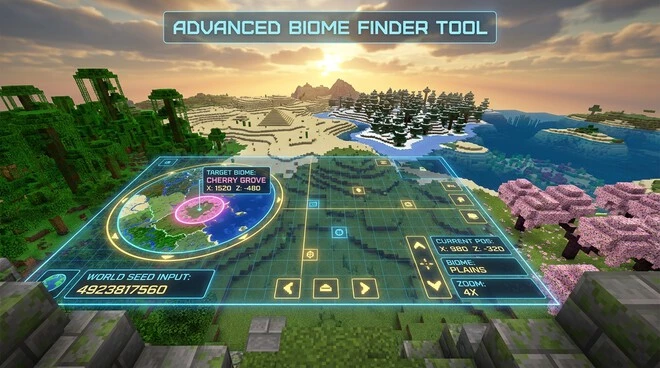
Most Minecraft biome finder tools use an interactive biome map. The map lets you zoom into different areas of your world. You can also check the coordinates of a selected biome.
Your world seed controls how Minecraft generates terrain and biomes. The correct seed helps a finder identify where specific biomes should appear.
You also need to select the correct Minecraft edition and version. Java Edition and Bedrock Edition can generate worlds differently.
This guide focuses on finding specific biomes with tools and Minecraft commands. It does not cover general seed discovery or lists of the best seeds.
With the right seed, version, and coordinates, you can spend less time searching manually.
How Minecraft Biome Finders Work
World Seeds and Biome Generation
A world seed acts as an input for Minecraft’s world generation system. Minecraft uses that input to create terrain, biomes, and other world features.
This process follows rules defined by the game’s generation system. The seed helps determine where different biomes appear across the world.
The same seed can produce consistent biome locations when you use the correct game edition and version. A Java world needs matching Java settings in the finder. The same principle applies to Bedrock worlds.
Biome locations use X, Y, and Z coordinates within the Minecraft world. X and Z usually identify a location across the map. Y represents height.
Biome distribution can cover huge areas. A biome finder helps you understand where those areas appear before exploring them manually.
How a Biome Finder Calculates Locations
A Minecraft biome finder processes your seed with compatible world-generation data. It then calculates where different biomes should appear.
The tool displays those results through a biome map. You can zoom across the map and apply biome filters. These filters help you find a specific biome faster.
Many tools also show coordinates for selected locations. Some can help identify the nearest matching biome from a chosen position.
Version compatibility plays a major role in accuracy. Minecraft updates can change world-generation rules. Your finder must match the edition and version that created your world.
Always verify important coordinates inside Minecraft. This step helps confirm that the calculated biome matches your actual world.
How to Use a Minecraft Biome Finder by Seed
Get Your Minecraft World Seed
First, find the seed of the world you want to analyze. The seed must match your actual Minecraft world.
In supported versions, you can use the /seed command to display the world seed. Some platforms may handle seed access differently.
Copy the seed exactly. Keep any negative sign if the seed contains one. Even one changed digit can produce different world-generation results.
Your Minecraft biome finder by seed needs this value to calculate biome locations correctly.
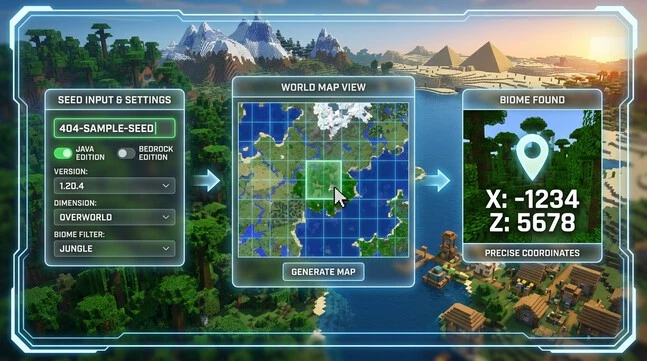
Select the Correct Minecraft Edition and Version
Next, choose the Minecraft edition that matches your world. Select Java Edition for Java worlds and Bedrock Edition for Bedrock worlds.
Then select the exact Minecraft version when the tool provides that option. Version selection affects world-generation calculations.
Using the wrong edition or version can place biomes at incorrect locations. It can also produce results that do not match your world.
Always check your world’s version before entering the seed. This simple step improves the reliability of your Minecraft seed biome finder results.
Enter the Seed and Open the Biome Map
Enter your world seed into the finder. Select the correct edition, version, and dimension if required.
Then load the interactive Minecraft biome map. Give the tool time to process the seed.
Once the map loads, you can explore the generated world visually. Different tools may offer different map controls and viewing options.
Search and Read Biome Coordinates
Use the biome filter to select the location you want. Search for a specific biome instead of scanning the entire map.
Zoom and move around the map to explore different areas. Look for the biome’s displayed coordinates.
Focus on the X and Z coordinates when planning surface travel. These coordinates identify the biome’s position across the world.
Record the coordinates before returning to Minecraft. Then travel to that location and verify the biome in-game.
Finding Specific Biomes With a Biome Finder
Common Biomes
A Minecraft biome finder can help locate common biomes across your world. These include Plains, Forest, Taiga, Desert, Savanna, and Jungle.
Use the biome filter to highlight the biome you need. Then check nearby areas on the map.
This approach helps you find suitable terrain without searching randomly. You can also compare several biome locations before choosing one.
Rare or Valuable Biomes
Rare biomes can take much longer to find through normal exploration. A biome finder can narrow the search to specific locations.
You can search for Mushroom Fields, Cherry Grove, Pale Garden, Badlands, Ice Spikes, and Mangrove Swamp. Each biome offers different terrain, resources, and exploration opportunities.
For example, Mushroom Fields can provide an unusual island environment. Cherry Grove offers distinctive terrain and cherry trees. Pale Garden provides a unique landscape for exploration.
Instead of traveling in random directions, use the map to compare potential locations. This can save significant exploration time.
Underground Biomes
Some biome finders also support underground biomes. These can include the Deep Dark, Lush Caves, and Dripstone Caves.
Tool support varies between different biome finder services. Check the available map layers before relying on underground results.
The displayed location can help you target the right area. You should still verify the biome inside your Minecraft world.
Search by Coordinates or Distance
A biome finder can help identify the nearest biome from a selected location. Compare its position with your spawn point or current coordinates.
Use the displayed X and Z coordinates to plan your route. This makes long-distance biome searches easier and more precise.
Minecraft Biome Finder for Java vs. Bedrock
Java Edition
A Minecraft biome finder Java tool uses your world seed to calculate biome locations. You should select the Java Edition option before searching.
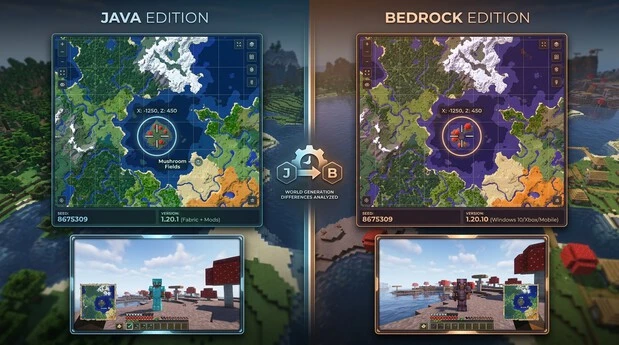
Version selection also matters. Minecraft changes its world-generation system across major updates. These changes can affect biome locations and generation patterns.
Choose the Minecraft version that matches the world you want to analyze. Then enter the exact seed from that world.
Java Edition also provides the F3 debug screen. You can use it to check your current coordinates while exploring.
A Java biome finder can help you locate biomes before traveling long distances. It can show biome areas and their approximate coordinates on a map.
Always compare the tool’s settings with your actual Minecraft world. This helps prevent errors caused by using the wrong generation version.
Bedrock Edition
A Minecraft biome finder Bedrock tool analyzes seeds using Bedrock world-generation data. Select Bedrock Edition before entering your seed.
Bedrock worlds can use different generation behavior from Java worlds. Therefore, Java biome results may not match the same seed in Bedrock.
Version selection remains important for Bedrock users. Choose the version that matches your world whenever the tool provides version options.
A Minecraft Bedrock biome finder by seed can then display biome locations and coordinates. You can use these results to plan exploration.
Check the tool’s supported Bedrock versions before relying on its results. Then verify important locations inside your game.
Why Edition and Version Matching Matters
Never assume Java results apply to Bedrock. Always select your world’s edition and matching Minecraft version.
This simple check improves biome-location accuracy.
You can use a Minecraft Seed Map to explore your world visually and find important locations more easily.
Finding Biomes in Different Minecraft Dimensions
Overworld Biomes
The Overworld contains most Minecraft biomes that players encounter during normal exploration. These include Plains, Jungle, Desert, Taiga, and Cherry Grove.
Biome finders can also show oceans and special terrain biomes. Depending on the tool, you may filter specific ocean types or mountain regions.
Some tools also support underground biomes. These can include Deep Dark, Lush Caves, and Dripstone Caves.
Check the available map layers before searching. Not every Minecraft biome finder supports underground biome data.
Nether Biomes
Some biome finder tools can analyze Nether biome locations using your world seed.
Common Nether biomes include Nether Wastes, Crimson Forest, Warped Forest, Soul Sand Valley, and Basalt Deltas.
Use the Nether dimension option when available. Then select the biome you want and check its coordinates.
Tool support can vary by Minecraft version and service.
End Biomes
Biome finders may also support the End dimension. End biomes include End Highlands, End Midlands, End Barrens, and Small End Islands.
Select the End dimension when the tool provides it. Then use the biome map to identify matching areas and coordinates.
Always check dimension support before relying on the results.
Using Minecraft Commands to Find a Biome
locate biome Command
The /locate biome command can help you find a specific biome directly inside Minecraft.
When supported, the command searches for a matching biome from your current world position. Minecraft then returns location information for the nearest matching biome it can find.
The basic command concept is:
/locate biome <biome>
Replace <biome> with the biome you want to locate. The exact biome name and command syntax can vary by Minecraft edition and version.
For example, you may search for a Jungle biome when you need jungle terrain nearby. The returned coordinates can help you travel toward that location.
Command availability also depends on your Minecraft version and world settings. Cheats or the required permissions may be needed to use commands.
Always check the command format for your specific edition. Do not assume Java and Bedrock use identical command behavior.
seed and F3 Coordinates
The /seed command can identify your world seed where the command is supported.
In Java Edition, the F3 debug screen displays your current coordinates. These coordinates help you compare your location with biome search results.
Commands vs. Biome Finder Tools
Minecraft commands provide a direct way to search for biomes in-game. They work well when you need a specific location quickly.
External biome finder tools offer a visual map. They can help you compare multiple biome locations and plan longer exploration routes.
How to Verify Biome Finder Results In-Game
Check the Minecraft Version
Before trusting a biome location, confirm your Minecraft version. Compare it with the version selected in your biome finder.
Also check the selected edition. Java and Bedrock can generate different results from the same seed.
Using matching settings gives the tool the best chance of producing accurate biome coordinates.
Compare Coordinates
Take the X and Z coordinates shown by the biome finder. Then travel toward those coordinates in your Minecraft world.
Use your in-game coordinates to track your position. In Java Edition, the F3 debug screen can help you monitor your location.
Once you reach the reported area, check the actual terrain and biome. Confirm that the displayed biome matches what you see in-game.
This simple check helps confirm that the finder produced a useful result for your world.
Why Results Can Sometimes Differ
Biome finder results can differ for several reasons. The most common cause is entering the wrong world seed.
Wrong edition or Minecraft version settings can also produce different biome locations. Generation changes may affect older worlds or unsupported versions.
Tool limitations can cause additional differences. Some tools may not support every biome, dimension, or generation change.
Treat calculated coordinates as a guide, not a guarantee. Always verify important biome locations inside your actual Minecraft world.
Common Minecraft Biome Finder Problems
Wrong Biome Appears
If the wrong biome appears, check your world seed first. Make sure you entered every digit correctly, including any negative sign.
Next, confirm the selected Minecraft edition and version. Java and Bedrock can produce different biome locations.
Coordinates Do Not Match
If coordinates seem incorrect, check the map’s coordinate system. Make sure you are reading the X and Z values correctly.
Also confirm that you selected the correct dimension. Overworld, Nether, and End locations use different world spaces.
Compare the reported coordinates with your in-game position. This can help identify a setting or reading error.
Biome Is Not Available in the Tool
Biome coverage varies between finder tools. Some tools may not support every biome or dimension.
Underground biomes can also have limited support. Check the tool’s available biome filters before starting your search.
Seed Does Not Produce Expected Results
Recheck the world seed and confirm that it matches your actual Minecraft world.
Then verify the selected Minecraft edition and version. Generation differences can affect results.
Finally, travel to the reported coordinates and verify the biome in-game. This confirms whether the result matches your world.
Best Practices for Accurate Biome Searches
Follow a few simple practices to improve your Minecraft biome finder results.
Use the exact world seed: Copy the complete seed, including any negative sign.
Select the correct edition: Choose Java Edition or Bedrock Edition based on your world.
Match the Minecraft version: Use the version that matches your world’s generation.
Choose the correct dimension: Select the Overworld, Nether, or End when supported.
Use biome filters: Filter for your target biome instead of scanning the entire map manually.
Record X/Z coordinates: Save the coordinates shown for your target biome.
Verify locations in-game: Treat calculated results as guides and confirm important locations yourself.
Check tool coverage: Third-party tools may not support every version, biome, or dimension.
Use commands for quick searches: In-game commands can help locate a specific biome when supported.
Use interactive maps for planning: Maps make it easier to compare multiple biome locations and plan longer routes.
These steps reduce common errors and make biome searches more reliable. They also help you avoid wasting time traveling to incorrect locations.
FAQ: Minecraft Biome Finder
1. What is a Minecraft biome finder?
A Minecraft biome finder is a tool that helps you locate biomes using your world seed. It can display biome locations and coordinates on a map.
2. How does a Minecraft biome finder work?
It processes your world seed using Minecraft’s generation data. The tool then predicts where different biomes appear and displays them on a map.
3. Can I find a biome using my Minecraft seed?
Yes. Enter your exact world seed into a compatible biome finder. Select the correct edition and version for better results.
4. How do I find a biome near spawn?
Enter your world seed and open the biome map. Locate your spawn area, then search nearby for your target biome.
5. Does a Minecraft biome finder work on Bedrock?
Yes, some tools support Bedrock Edition. Select Bedrock and the matching Minecraft version before searching.
6. Does a Minecraft biome finder work on Java Edition?
Yes. Many biome finder tools support Java Edition. Select the correct Java version before entering your seed.
7. Can I find rare biomes with a biome finder?
Yes. Supported tools can help locate rare biomes such as Mushroom Fields, Cherry Grove, and Ice Spikes.
8. Can I find underground biomes?
Some tools support underground biomes, including Deep Dark, Lush Caves, and Dripstone Caves. Support varies by tool and version.
9. How do I find a biome using /locate biome?
When supported, use /locate biome <biome> in Minecraft. Replace <biome> with the biome you want to locate.
10. Why are my biome finder coordinates wrong?
Check your seed, edition, version, dimension, and coordinate settings. Then verify the location inside your Minecraft world.
11. Do I need to select my Minecraft version?
Yes. Matching the tool’s version with your world helps produce more reliable biome locations.
12. Are biome finder results always accurate?
No. Results depend on correct seed, edition, version, and tool support. Always verify important coordinates in-game.