What a Minecraft Seed Map Helps You Find
A Minecraft seed map gives you a visual preview of a world before you explore it. You enter your world seed into a Minecraft seed map viewer to see its generated terrain.
An interactive seed map can reveal important locations across your world. You can find biomes, structures, terrain, and useful coordinates from one map.
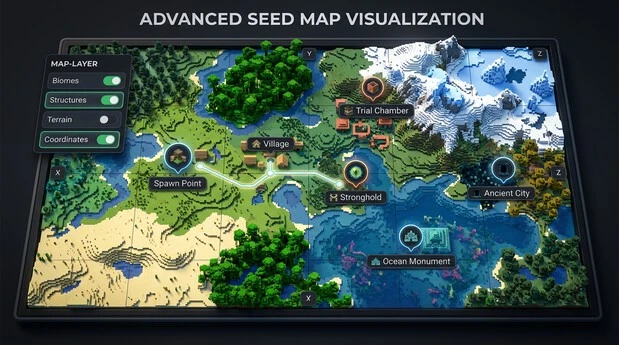
This helps you plan exploration before spending hours searching in-game. You can locate villages, strongholds, Trial Chambers, Ancient Cities, and other structures faster.
A Minecraft world seed map can also help you understand the layout of your world. You can check nearby areas and plan where to travel.
Most seed maps support specific Minecraft editions and versions. Always select the correct Java Edition or Bedrock Edition version for accurate results.
In this guide, you will learn how to read a seed map. You will also learn how to use its layers, markers, and coordinates effectively.
What Is a Minecraft Seed Map?
What a World Seed Does
A world seed is a value that Minecraft uses to generate a world. It works as an input for the game’s world generation system.
The seed helps determine how Minecraft creates terrain across the world. It also influences biome placement and many generated structures.
The same seed can produce the same world when you use the correct edition and version. However, world-generation changes can affect results between versions.
This makes the seed important for anyone who wants to study or explore a specific world layout.
What a Seed Map Shows
A seed map turns that world-generation data into an interactive visual map. A seed map viewer lets you explore the world without walking through it in-game.
You can use a Minecraft world map to preview terrain and biome locations. A terrain map helps you understand the shape and layout of the world.
A biome map can show areas such as deserts, forests, jungles, and oceans. A structure map can display supported locations such as villages and strongholds.
The map can also show coordinates and markers for important locations. These features help you plan where to explore.
A seed map only previews your world. It does not change your Minecraft world or its generated terrain.
How a Minecraft Seed Map Works
Entering the Seed
A Minecraft seed map tool starts with your world seed. Enter or paste the exact seed into the seed input field.
A seed can contain positive or negative numbers. The minus sign matters, so copy the seed exactly.
Do not confuse the seed with your world coordinates. The seed identifies the world generation, while coordinates identify locations inside that world.
Selecting the Edition and Version
Next, choose the correct Minecraft edition and version. Most tools separate Java Edition and Bedrock Edition because their generation can differ.
Select the same Minecraft version that created your world. This step matters because Minecraft updates can change world-generation rules.
A map can show incorrect locations when you select the wrong version. The same issue can occur when you use the wrong edition.
For existing worlds, match the version that generated the area you want to inspect. This gives your seed map the best chance of showing accurate results.
Generating the Map
After entering the seed and settings, the tool processes the world generation data. It then creates an interactive map based on those settings.
You can explore the map using different map layers. Layers may show biomes, terrain, structures, and other supported features.
Markers identify specific locations on the map. You can select markers to view their coordinates and other details.
Some tools also support multiple dimensions. These may include the Overworld, Nether, and End. Availability depends on the tool, edition, and Minecraft version.
How to Get Your Minecraft Seed Before Using the Map
Finding the Seed in Java Edition
To learn how to find your Minecraft world seed in Java Edition, open your world and use the /seed command when commands are available.
Minecraft will display the seed value in chat. Copy the complete number, including any minus sign.
You can then paste this Minecraft Java seed into your chosen seed map tool.
Finding the Seed in Bedrock Edition
For a Minecraft Bedrock seed, open the world you want to inspect. Go to the world settings and find the seed information.
Copy the complete seed value before opening your seed map tool.
The exact menu layout can vary between Minecraft versions. Check your current world settings if you cannot find the seed immediately.
Match Your World Settings
Before generating the map, confirm three details: your seed, edition, and Minecraft version.
Choose Java Edition for a Java world and Bedrock Edition for a Bedrock world. Then select the version that generated the area you want to inspect.
Correct seed compatibility helps produce reliable map results. A wrong seed, edition, or version can show different biomes and structures.
Always copy the seed carefully. One missing or changed digit can produce a completely different world.
How to Read a Minecraft Seed Map
Understanding the Map View
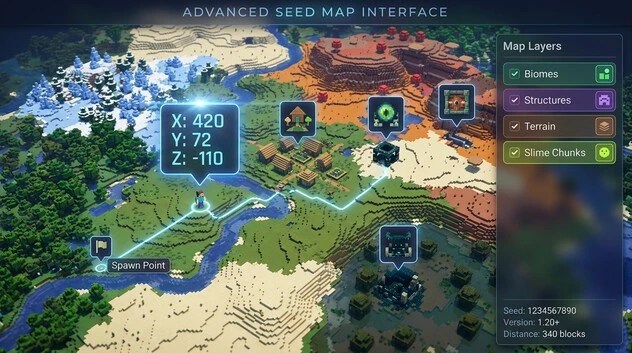
A Minecraft map viewer displays your generated world as an interactive map. The main map area shows terrain, biomes, and supported locations.
You can zoom in for detailed areas or zoom out to view larger regions. Drag the map to move between locations.
A map grid can help you understand distances and positions. The overall terrain layout makes it easier to plan exploration before entering unknown areas.
Understanding Map Layers
Map layers control which information appears on your interactive map. Turning layers on or off keeps the map easier to read.
A biome layer can show deserts, forests, jungles, oceans, and other biome types. Structure layers can reveal villages, strongholds, Ancient Cities, Trial Chambers, and other supported structures.
Some seed map tools also provide slime chunk information. Other available layers may show caves, monuments, mineshafts, shipwrecks, or Nether structures.
The available layers depend on your selected Minecraft edition and version. Always check which features your seed map supports before relying on them.
Reading Markers and Locations
Map markers identify important locations within your generated world. A structure marker can point to a village, stronghold, or another supported feature.
Selecting a marker may display its coordinates. These Minecraft seed map coordinates usually help you locate the same area inside your game.
You can also use seed map search features to find specific biomes or structures. Search results can take you directly to the relevant map location.
Use these markers to plan routes before exploring. For example, you can locate a nearby village, record its coordinates, and travel there in-game.
This makes an interactive map useful for planning exploration and reducing unnecessary searching.
If you’re looking for great worlds to start with, explore our guide to the Best Minecraft Bedrock Seeds.
Finding Biomes With a Minecraft Seed Map
Locate Specific Biomes
A Minecraft biome map makes it easier to locate specific biomes in your generated world. Select the biome layer and explore the map for the area you need.
You can search for common biomes such as Plains, Desert, Jungle, Savanna, and Taiga. You can also locate rarer areas such as Cherry Grove, Mushroom Fields, and Badlands.
Snowy biomes are also easy to identify when the biome layer is enabled. Depending on the tool, you may find Snowy Plains, Snowy Taiga, or other cold regions.
A Minecraft biome finder can save time when you need a specific environment. For example, you might search for a Jungle to collect bamboo or a Mushroom Fields biome for a unique base location.
The map uses your seed and selected version to display Minecraft seed map biomes. This helps you understand biome distribution before traveling through the world.
Use Biome Coordinates
After finding a biome, select the location on the map. The tool can show its biome coordinates or the coordinates of the selected map position.
Record the X and Z coordinates before returning to Minecraft. Use them as a navigation reference while exploring.
This makes distant biomes easier to locate without searching randomly across your world.
Why Biome Results Can Differ
Biome results can vary between Minecraft versions and editions because terrain generation can change.
Map visualization may also have limitations. For important locations, verify the biome in-game before relying on the result.
Finding Structures With a Minecraft Seed Map
Common Overworld Structures
A Minecraft structure map helps you locate important generated structures across your world. Enable the structure layer to see supported locations.
You can find villages, strongholds, Ancient Cities, and Trial Chambers. Many maps also show Woodland Mansions, Ocean Monuments, and Pillager Outposts.
Other useful structures may include Desert Temples, Jungle Temples, Shipwrecks, Ruined Portals, and Mineshafts.
A Minecraft structure finder makes these locations easier to identify from your seed. This can help you plan exploration around valuable structures.
For example, a village finder can help you locate nearby settlements. A stronghold finder can help you identify potential routes toward an End Portal.
You can also use an ancient city finder or trial chamber finder to search for specific underground structures.
Finding Structure Coordinates
First, enable the structure layer on your seed map. Find the marker for the structure you want to visit.
Select the marker to view its available location information. Most tools provide X and Z coordinates for supported structures.
Record these coordinates and use them as a navigation reference in Minecraft. Always confirm that your selected edition and version match your world.
Special Locations
Some seed maps support locations across other dimensions and special world features. These may include End Cities, Nether Fortresses, and Bastions.
You may also find slime chunks through a slime chunk finder. Other supported features can include Nether structures, End-related locations, caves, geodes, and additional terrain features.
Feature availability is not identical across every Minecraft edition or version. Java and Bedrock can have different supported features and accuracy.
Always check the tool’s available map layers before planning an important journey. For critical locations, verify the coordinates in your actual Minecraft world.
Using Coordinates and Navigation on the Seed Map
Understanding X, Y, and Z
Minecraft seed map coordinates use three values to describe a location. The X coordinate shows your position from east to west.
The Z coordinate shows your position from north to south. Seed maps commonly use X and Z to identify horizontal locations across the world.
The Y coordinate represents vertical height. It helps identify how high or deep a location is underground.
Some tools may also display chunk coordinates for more precise map navigation.
Searching and Navigating
Use the map’s search or coordinate controls to move directly to a location. Enter the desired X and Z values when supported.
You can then zoom into the area and move around the map. This makes it easier to inspect nearby biomes, structures, and terrain.
For example, you can search around specific structure coordinates before planning your route.
Taking Coordinates Into Minecraft
Once you find a useful location, copy its coordinates carefully. Record the X, Y, and Z values when available.
Enter Minecraft and travel toward those coordinates. Use your in-game coordinate display to stay on course.
When you arrive, confirm the structure or biome in-game. This helps catch differences caused by version or map limitations.
Using Seed Maps Across the Overworld, Nether, and End
Overworld
The Overworld is the main dimension shown by most Minecraft seed maps. You can explore its biomes, terrain, and spawn area before entering the game.
Depending on the tool, map layers can reveal villages, Strongholds, Ancient Cities, Trial Chambers, and other structures.
You can also study oceans, mountains, forests, deserts, and other terrain features. This makes the Overworld map useful for planning exploration and choosing important destinations.
Nether
A Minecraft seed map Nether view can help locate supported Nether features. These may include Nether Fortress and Bastion Remnant locations.
Select the Nether dimension when the map supports it. You can then inspect the generated Nether terrain and available structure markers.
Feature availability can vary by Minecraft edition and version.
End
The Minecraft seed map End view can help you explore supported End locations. An End Portal is found inside a Stronghold, which connects the Overworld to the End.
After entering the End, a seed map may show End City locations and other supported End-related features.
Not every map supports every dimension or feature. Always select the correct edition and version before relying on the displayed results.
Minecraft Seed Map Accuracy, Versions, and Limitations
Why Version Selection Matters
Minecraft seed map accuracy depends heavily on the selected version. World-generation rules can change between Minecraft updates.
For existing worlds, select the version that generated the chunks you are checking. Mixed-version worlds may require different version selections for different areas.
Java vs Bedrock Accuracy
Do not assume identical results between Java and Bedrock. Java vs Bedrock generation can differ, affecting structure locations and other features.
Always select the correct edition and version when checking seed compatibility. Using incorrect settings can produce misleading map results.
Common Map Limitations
Seed maps are useful, but they are not perfect. Some features can be missing or appear at inaccurate locations.
Certain structures have known limitations, while some markers may provide approximate X/Z coordinates. Spawn positions can also differ from the actual in-game location.
Add-ons, mods, and behavior or data packs that change world generation can also cause differences between the map and your world.
Always Verify Important Locations
Treat a seed map as a planning tool rather than absolute proof. Use its coordinates to guide your exploration.
For valuable structures or important destinations, perform in-game verification before relying on the result. This helps account for version differences and seed map limitations.
Minecraft Seed Map FAQs
What is a Minecraft seed map?
A Minecraft seed map is an interactive map that shows biomes, terrain, structures, and locations generated from a world seed.
How do I use a Minecraft seed map?
Enter your world seed, select the correct Minecraft edition and version, then explore the generated map using layers and markers.
Where can I find my Minecraft world seed?
In Java Edition, use the /seed command when available. In Bedrock, check your world’s settings for the seed value.
Does a Minecraft seed map work with Bedrock Edition?
Yes. Many seed maps support Bedrock Edition. However, available features and accuracy can vary by Minecraft version.
Does a Minecraft seed map work with Java Edition?
Yes. Seed maps commonly support Java Edition across multiple versions. Always select the version that generated your world.
Can a seed map find villages?
Yes. Supported seed maps can display village locations and provide coordinates for easier in-game navigation.
Can a Minecraft seed map find strongholds?
Yes. A supported seed map can identify Strongholds and provide location coordinates. Strongholds contain End Portals.
Can I find biomes using a Minecraft seed map?
Yes. Use the biome layer to locate areas such as deserts, jungles, Taiga, Cherry Groves, and Mushroom Fields.
Can a seed map show Trial Chambers and Ancient Cities?
Many modern seed maps support both Trial Chambers and Ancient Cities. Feature availability depends on the selected edition and version.
Why are my seed map coordinates wrong?
Incorrect seeds, editions, or versions can cause mismatched coordinates. Mods, add-ons, and generation changes can also affect results.
Why does my Minecraft seed map look different from my world?
Your map may use the wrong version or edition. Some visual differences can also result from terrain or map-rendering limitations.
Do I need to verify seed map locations in-game?
Yes. Use the map for planning, then confirm important locations in Minecraft. This helps account for accuracy and version limitations.