Minecraft Modpacks
Minecraft modpacks combine multiple Minecraft mods into one organized setup. They can add new biomes, mobs, dimensions, quests, technology, or progression systems. Most traditional Minecraft modpacks target Minecraft Java Edition, which has a large modding ecosystem.
However, installing a modpack involves more than downloading a file. You must match the Minecraft version, mod loader, and required dependencies. A mismatch can cause crashes, missing mods, or launch errors.
Popular mod loaders include Forge, Fabric, NeoForge, and Quilt. Each modpack supports specific versions and loaders, so always check its requirements first.
This guide explains how to choose compatible Minecraft modpacks and install them correctly. You will also learn how to avoid common version conflicts and compatibility problems.
What Are Minecraft Modpacks?
Minecraft modpacks group several mods into one ready-to-use gameplay setup. They save players from installing and configuring every mod separately. A well-built pack also includes configuration files and required dependencies. These files help the included mods work together correctly.
Modpack vs. Individual Mods
An individual mod usually changes one part of Minecraft. It might add new items, creatures, blocks, or gameplay features. A modpack combines many mods around a specific gameplay goal.
For example, one pack might focus on technology and automation. Another might emphasize exploration, quests, or RPG progression. The pack creator selects compatible mods and manages their required dependencies. Configuration files also help control how those mods interact.
This approach creates a more complete and consistent modded Minecraft experience. Players can install one pack instead of building a setup from scratch.
How Modpacks Change Minecraft
Minecraft modpacks can significantly expand the game’s systems and progression. Some add quests that guide players through a structured journey. Others introduce new dimensions, biomes, mobs, structures, and exploration areas.
Technology packs can add machines, power systems, and automation. Magic-focused packs can introduce spells, rituals, and supernatural progression. RPG packs may add skills, classes, bosses, and new equipment.
The result depends on the mods included in each pack. Always check the pack description before choosing one.
Java Edition and Bedrock Edition
Most conventional Minecraft modpacks target Minecraft Java Edition. Java supports the major modding ecosystem used by platforms such as CurseForge and Modrinth.
Minecraft Bedrock Edition uses a different add-on system. Java modpacks do not install directly into Bedrock Edition. Always check the edition before downloading a pack.
How to Choose the Right Minecraft Modpack
Choosing the right modpack starts with compatibility. You should also consider your playstyle and computer hardware.
Check the Minecraft Version First
Every modpack targets a specific Minecraft version. Check that version before you install anything. Do not assume the newest Minecraft release supports your chosen pack. Mods often depend on specific game versions and APIs. Using the wrong version can cause crashes or missing dependencies. Always check the pack page for its supported Minecraft version. Match your launcher profile to that exact version.
Check the Mod Loader
Next, check which mod loader the pack requires. Common loaders include Forge, Fabric, NeoForge, and Quilt. Each loader supports different mods and versions. Your launcher must use the loader listed by the pack. Never switch loaders without checking compatibility first. A modpack designed for Fabric may not work with Forge. The same rule applies to NeoForge and Quilt.
Match the Pack to Your Playstyle
Choose a pack that matches how you enjoy Minecraft. Vanilla+ packs enhance the original experience without major changes. Survival packs add new challenges and progression. RPG and adventure packs focus on exploration, skills, quests, and combat. Technology packs emphasize machines and automation. Magic packs add spells and supernatural systems. Exploration and quest-based packs provide new goals and discoveries.
Check Performance Requirements
Check the pack’s PC requirements before installation. Large modpacks can use significant RAM, CPU, and GPU resources. More mods can also affect FPS and loading times. Lightweight packs usually suit weaker PCs better. Heavy packs may need more memory and stronger hardware. Shaders can increase GPU usage even further. Choose a pack your computer can run comfortably.
Minecraft Modpack Version Compatibility Explained
Version compatibility determines whether your Minecraft modpack can run correctly. Every part of the setup must support the same environment.
Minecraft Version Must Match
A modpack targets a specific Minecraft release. Its mods, dependencies, and configuration files support that release. For example, a pack built for Minecraft 1.20.1 may not work correctly on 1.21. A newer game version can change APIs or game systems that mods rely on.
Always check the modpack’s listed Minecraft version before installation. Then select that exact version in your launcher. This simple step prevents many compatibility problems.
Mod Loader Version Must Match
The mod loader must also match the modpack’s requirements. Forge packs need the appropriate Forge environment. Fabric packs require Fabric and its supported components. NeoForge and Quilt packs follow their own compatibility requirements.
Do not replace the required loader with another one. Different loaders use different modding systems. Always follow the loader and version listed by the pack.
Dependencies and Configuration Files
Many mods require additional files called dependencies. These files provide functions that other mods need to operate. Removing a required dependency can stop the entire pack from launching.
Configuration files also control how mods behave together. Manually replacing mods can create incompatible combinations. Avoid changing included files unless the pack documentation recommends the change.
Why Mixing Mods Causes Conflicts
Mixing incompatible components can create several problems. Common causes include:
- Wrong Minecraft version
- Wrong mod loader
- Incompatible mod versions
- Missing dependencies
- Conflicting configurations
Check every component before changing a working modpack.
Where to Get Minecraft Modpacks
Choosing a reliable source helps you find legitimate modpacks and accurate version information. Two major platforms serve the Minecraft Java Edition modding community: CurseForge and Modrinth.
CurseForge
CurseForge provides a large ecosystem of Minecraft mods and modpacks. Its modpack listings show supported Minecraft versions and mod loaders. The CurseForge launcher also supports installing and managing modpack instances. This makes it useful for players who want a simpler installation process.
Modrinth
Modrinth focuses on the Minecraft Java Edition ecosystem. It hosts mods, modpacks, resource packs, shaders, and other community content. Modrinth listings provide important version and loader information. Its app can also install and manage compatible modpack instances.
Why the Source Matters
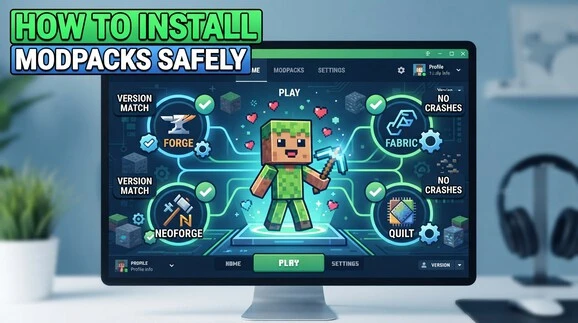
Use reputable platforms when downloading modpacks. Before installation, check the Minecraft version, loader, dependencies, and update information. These details help you avoid outdated or incompatible files.
How to Install Minecraft Modpacks
Installing a Minecraft modpack is easiest through a compatible Minecraft modpack launcher. These launchers can create a separate modpack instance and manage many required files automatically. Always use the launcher and version supported by your chosen pack.
Choose a Compatible Launcher
Popular options include CurseForge, Modrinth App, Prism Launcher, and ATLauncher. Each can manage modpack instances in different ways. Choose a launcher that supports your selected pack, Minecraft version, and mod loader. Check the pack’s installation instructions if it recommends a specific launcher.
Select the Modpack and Version
Open the modpack’s page in your chosen launcher or supported platform. Review its Minecraft version before starting the installation. Then check the required mod loader, such as Forge, Fabric, NeoForge, or Quilt. Select the exact compatible release shown by the pack. Do not choose a newer Minecraft version simply because it is available. The pack may depend on mods that support only its listed version.
Install the Modpack
Start the installation from the supported launcher. Select the required modpack version and confirm the installation. The launcher should create a separate modpack instance for the pack.
Allow it to download the required game files, mods, libraries, and other components. Where supported, the launcher also handles required mod dependencies automatically. Avoid downloading individual mods separately during this step. Let the modpack installer build the setup according to the pack’s included files and requirements.
Launch and Verify the Instance
Start the correct modpack profile from your launcher. Check that it uses the expected Minecraft version and mod loader. Wait for the game to finish loading. If the main menu appears without errors, the installation likely worked correctly. You can then create or load a world and test the included features.
Avoid Manual Mod Replacement
Do not randomly replace included mods with newer versions. A newer mod can create compatibility problems. Do not remove required dependencies either. Make a backup before changing any modpack files. If an update causes problems, restore the backup or return to the pack’s supported configuration.
How to Avoid Common Minecraft Modpack Conflicts
Minecraft modpack troubleshooting often starts with compatibility checks. Most crashes come from a mismatch between the game, loader, mods, or system resources.
Wrong Minecraft Version
Cause: The modpack or one of its mods targets a different Minecraft release. This can trigger a crash or compatibility error.
Fix: Check the pack’s supported Minecraft version. Select that exact version in your launcher. Avoid updating the game separately from the modpack.
Wrong Mod Loader
Cause: The instance uses the wrong loader for its included mods. For example, a Fabric pack cannot normally use a Forge environment.
Fix: Check the pack requirements and select the correct loader. Do not switch between Forge, Fabric, NeoForge, or Quilt without confirming compatibility.
Missing Dependencies
Cause: A required library or dependency is missing. The game may show a dependency error during startup.
Fix: Reinstall or repair the modpack through its supported launcher. Let the launcher download required dependencies where supported. Do not remove required library mods.
Incompatible Mod Versions
Cause: A mod version does not match the Minecraft version or other mods in the pack. This can cause crashes or broken features.
Fix: Use the mod version included with the pack. Check the pack’s release notes before changing individual mods. Replace a mod only when compatibility is confirmed.
Too Little RAM or Poor Performance
Cause: Large modpacks can use substantial memory and processing resources. Too little RAM can cause slow loading, stuttering, or crashes.
Fix: Adjust RAM allocation according to the pack’s requirements. Lower graphics settings and reduce shader use if FPS remains low. Avoid allocating excessive RAM unnecessarily.
To learn more about this topic, click on “best minecraft mods“!
Minecraft Modpack Performance and RAM
Minecraft modpacks can require more system resources than vanilla Minecraft. Performance depends on the pack, your hardware, and your graphics settings.
How Modpacks Affect Performance
More mods can increase CPU, GPU, and RAM usage. World generation can also create extra processing demands. Large numbers of mobs, machines, dimensions, and visual effects may increase the workload further. Heavy modpacks can reduce FPS or increase loading times. Lightweight packs usually place less demand on your system.
RAM Allocation
Modpacks often need more RAM than vanilla Minecraft. However, giving Minecraft excessive memory does not automatically improve performance. Your computer also needs RAM for Windows and other running programs.
Check the modpack’s recommended memory requirements first. Then adjust memory allocation based on your total system RAM. Leave enough memory available for the operating system and background applications.
Shaders and Resource Packs
Shaders can significantly increase GPU usage because they add advanced lighting, shadows, and visual effects. High-resolution resource packs can also require more graphics memory and processing power.
If your FPS drops after enabling them, disable shaders first. You can also switch to a lower-resolution resource pack. These changes provide a simple form of performance optimization without modifying the modpack itself.
How to Update Minecraft Modpacks Safely
A Minecraft modpack update can add features, fix bugs, or improve compatibility. However, updating without preparation can affect existing worlds.
Back Up Your World
Create a backup before installing a major modpack update. Save a copy of your world outside the active instance. This gives you a recovery option if the update causes crashes, missing content, or world issues.
Check the New Pack Version
Review the new pack version before updating. Confirm its Minecraft version and mod loader. Then check the listed mod changes and dependencies. Make sure your launcher supports the updated configuration. If the new release changes Minecraft versions, check version compatibility before opening your existing world.
Avoid Updating Individual Mods Randomly
Modpacks are tested around a specific combination of mods and dependencies. Updating one component can break that combination. It may cause crashes, missing features, or other mod compatibility problems.
Use the pack’s official update when possible. Avoid replacing individual mods unless the pack author recommends the change. This keeps the instance closer to its tested configuration.
Minecraft Modpacks: Quick Compatibility Checklist
Before launching a Minecraft modpack, check every compatibility point. A quick review can prevent many crashes and dependency errors.
Compatibility Checklist
- ☐ Minecraft Edition matches: Confirm the pack supports your Minecraft edition.
- ☐ Minecraft version matches: Use the exact Minecraft version listed by the pack.
- ☐ Mod loader matches: Confirm Forge, Fabric, NeoForge, or Quilt as required.
- ☐ Modpack version is correct: Select the intended release of the pack.
- ☐ Required dependencies are installed: Check that all required libraries and dependencies are available.
- ☐ Launcher supports the pack: Use a compatible modpack launcher and installer.
- ☐ PC meets performance requirements: Check RAM, CPU, GPU, and expected FPS performance.
- ☐ World is backed up: Create a backup before major updates or configuration changes.
- ☐ Server and client versions match: Multiplayer players should use compatible pack, Minecraft, and loader versions.
Quick rule: Match the edition, Minecraft version, loader, modpack version, and dependencies before you launch.
Frequently Asked Questions
What is a Minecraft modpack?
A Minecraft modpack is a curated collection of mods and supporting files. It creates a complete modded gameplay setup. Modpacks can add quests, technology, magic, exploration, mobs, dimensions, and new progression systems.
Can Minecraft modpacks cause version conflicts?
Yes. Version conflicts can occur when the Minecraft version, mod loader, modpack version, or dependencies do not match. Using incompatible mods can also cause crashes, missing features, or launch errors.
Do Minecraft modpacks work on Bedrock Edition?
Most traditional Minecraft modpacks target Java Edition. Bedrock Edition uses a different add-on system. A Java modpack cannot normally install directly into Bedrock. Always check the pack’s supported edition before downloading it.
What is the difference between Forge and Fabric modpacks?
Forge and Fabric are different mod loaders with separate compatibility requirements. A Forge modpack needs compatible Forge mods, while a Fabric pack needs Fabric-compatible mods and components. You should not switch loaders without checking the pack requirements.
Why does my Minecraft modpack crash?
A modpack can crash because of a wrong Minecraft version, incompatible mod, missing dependency, or incorrect loader. Insufficient RAM can also cause problems. Check the pack requirements and crash message to identify the likely cause.