How to Install Minecraft Mods
Minecraft Java Edition supports a wide range of mods that change gameplay, add features, or improve your experience. Installing them takes a few careful steps. You need the correct Minecraft version, compatible mod loader, and required dependencies. You should also back up important worlds before making changes. This guide explains how to install Minecraft mods safely using a clear manual process. You will learn how to check compatibility, install the right loader, place mod files correctly, and avoid common problems. These checks can help you enjoy mods without risking your valuable Minecraft saves.
What You Need Before Installing Minecraft Mods
Before installing a mod, check a few important requirements. These checks prevent many installation errors and protect your Minecraft worlds.
Minecraft Java Edition
Traditional .jar mods target Minecraft Java Edition. Open the Minecraft Launcher and check your installed game version. Then compare it with the version listed on the mod page. A mod may fail if the versions do not match.
A Compatible Mod Loader
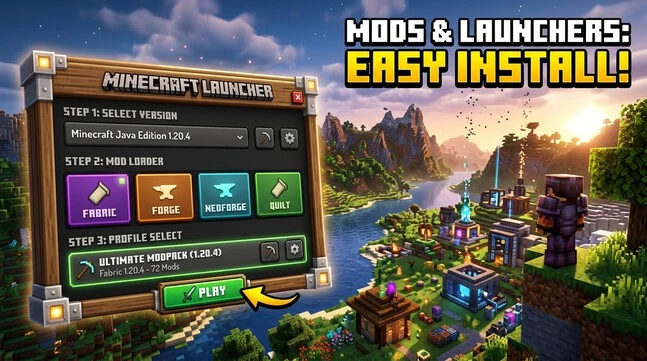
Most Java mods require a specific mod loader. Common options include Fabric, Forge, NeoForge, and Quilt. Check the mod page to see which loader it supports. Do not assume one loader works with every mod.
A Trusted Mod Download
Download the mod from a reputable source and check its requirements first. Choose the correct .jar file for your Minecraft version and loader. Also check whether the mod needs extra dependencies, such as an API or library.
Backup Your Minecraft World
Create a backup before installing mods. Keep an untouched copy of important saves outside your active Minecraft folder. A backup gives you a safe way to restore your world if a mod causes problems.
Check Minecraft Mod Compatibility First
Before installing a Minecraft mod, confirm that every requirement matches. Compatibility problems often stop mods from loading correctly.
Match the Minecraft Version
Check the Minecraft version supported by the mod. Then compare it with your installed game version. Do not assume nearby versions will work.
For example, a mod made for one release may fail on another release. Fabric documentation warns that even closely related versions can differ in compatibility.
Match the Mod Loader
Your mod must support the loader you plan to use.
- Fabric mod: Use Fabric Loader.
- Forge mod: Use Minecraft Forge.
- NeoForge mod: Use NeoForge.
- Quilt mod: Use Quilt.
These loaders are not interchangeable. Always follow the loader listed on the mod’s download page.
Check Mod Dependencies
Some mods need additional files before they can run. These files may include Fabric API or another library mod.
Fabric documentation notes that many Fabric mods require Fabric API. Mod metadata can also declare required dependencies.
Install every required dependency listed by the mod author. Missing dependencies can prevent the game from launching.
Read the Mod Requirements
Read the mod page before downloading its file. Check the supported Minecraft versions, required loader, and dependency list.
Also check for conflict warnings or special requirements. This simple check can prevent most compatibility mistakes before installation.
Choose and Install the Required Mod Loader
A mod loader connects Minecraft Java Edition with the mods you install. Choose the loader listed by the mod author.
How to Identify the Required Loader
Open the mod’s download page and check its loader information. Look for labels such as Fabric, Forge, NeoForge, or Quilt.
Also confirm the supported Minecraft version. Never install a loader based only on the mod’s name.
Install Fabric for Minecraft Mods
If the mod requires Fabric, download the Fabric Installer from its official website. Select the Minecraft version that matches your mod.
Run the installer and choose Install. Keep Create Profile enabled when using the official Minecraft Launcher. Fabric then creates a profile for that Minecraft version.
Open the Minecraft Launcher and select the new Fabric profile. Launch it once before adding any mods. This confirms that Fabric works correctly.
Install Forge, NeoForge, or Quilt
Use the installer for the loader required by your mod. Follow the loader’s instructions for your Minecraft version.
Do not mix loaders. A Forge mod does not automatically work with Fabric. NeoForge and Quilt also have their own loader requirements.
Launch the Loader Profile First
Start Minecraft with the new loader profile before adding mod files. Let the game reach the main menu successfully.
Then close Minecraft and the launcher. You can now continue with the manual mod installation steps.
How to Install Minecraft Mods Manually
Once your loader is ready, you can install Minecraft mods manually. This method uses the mod’s .jar file and your Minecraft game folder.
Download the Correct Mod .jar File
Open the mod’s trusted download page. Check the supported Minecraft version and required loader before downloading.
Also review the dependency list. Some mods require additional APIs or library mods to work correctly.
Open the Minecraft Game Folder
Find your Minecraft game directory. For the standard launcher, this is usually the .minecraft folder.
On Windows, you can reach it through %appdata%\.minecraft. Third-party launchers may use separate instance folders.
Find or Create the Mods Folder
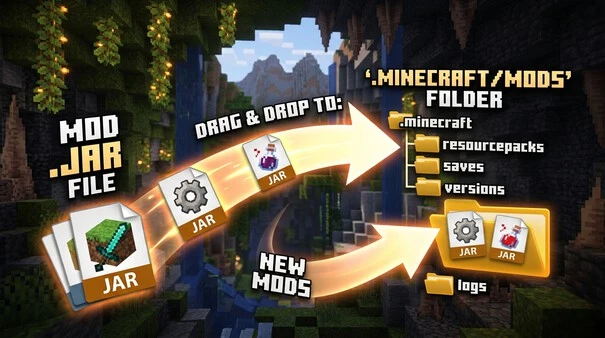
Look for a folder named mods inside the Minecraft game directory. If it does not exist, create a new folder named mods.
Fabric’s official guide lists the mods folder as the location for Fabric mod .jar files.
Put the Mod .jar File in the Mods Folder
Copy or move the downloaded .jar file into the mods folder.
Do not extract the .jar file. The loader reads the mod from its JAR structure and metadata.
Add Required Dependencies
Place any required API or library files in the same mods folder. Check that each dependency supports your Minecraft version and loader.
Missing required dependencies can prevent the game from launching.
Launch the Correct Modded Profile
Open the Minecraft Launcher and select the profile for your installed loader. Then click Play.
Make sure the selected profile uses the same Minecraft version as your mods.
Verify That the Mod Is Installed
After Minecraft starts, check the available mod list if your loader provides one. You can also test the mod’s main feature.
If the feature works correctly, the mod has loaded successfully. If Minecraft crashes, check the error message before changing files.
How to Find the Minecraft Mods Folder
Finding the correct Minecraft mods folder is essential for manual mod installation. Its location depends on your operating system.
Minecraft Mods Folder on Windows
On Windows, open File Explorer and enter %appdata%\.minecraft in the address bar. This opens the standard Minecraft game directory.
The mods folder is inside this directory. Its full path is %appdata%\.minecraft\mods.
Minecraft Mods Folder on macOS
On macOS, open Finder and navigate to:
~/Library/Application Support/minecraft
The mods folder is located inside this Minecraft directory.
Minecraft Mods Folder on Linux
On Linux, the standard Minecraft directory is:
~/.minecraft
Open this directory and look for the mods folder.
What If You Use a Separate Minecraft Instance?
Third-party launchers can store each Minecraft instance separately. Their mods may therefore use an instance-specific mods folder.
If a mod does not load, check that you placed it in the folder used by your selected profile. Putting the .jar file in the wrong directory can make Minecraft ignore the mod.
Always check your launcher’s instance settings when the standard .minecraft folder does not contain your active mods.
How to Install Minecraft Mods Safely
Safe mod installation starts before you place any file in Minecraft. A few simple checks can reduce security and compatibility risks.
Download Mods From Trusted Sources
Download mods from trusted platforms or the developer’s official page. Avoid unknown websites that offer modified or suspicious files.
Check the mod name, Minecraft version, loader, and file type before downloading. Fabric recommends trusted sources such as Modrinth and CurseForge.
Back Up Your Minecraft Worlds
Back up important Minecraft worlds before installing new mods. Keep the backup outside your active game folder.
This step matters more for mods that change world generation or gameplay data. A separate backup gives you a safe restore point if something goes wrong.
Keep Track of Versions
Record the versions used by your setup. Include your Minecraft version, loader version, mod version, and dependency versions.
This information makes future updates and troubleshooting much easier. It also helps you identify which component changed after a problem appears.
Add Mods One at a Time
Install new mods gradually instead of adding many files together. Start Minecraft after each major change when practical.
If a crash occurs, you can then identify the likely cause faster. This approach also makes mod conflicts and missing dependencies easier to troubleshoot.
Looking for the perfect world to start your adventure? Explore our Minecraft World Seeds guide for great seed ideas.
Minecraft Mods Not Working? Fix Common Problems
Minecraft mods can fail for several common reasons. Check each problem before reinstalling everything.
The Mod Uses the Wrong Minecraft Version
Check the mod’s supported Minecraft version first. A mod made for one release may not work on another.
Install the version listed by the mod author. Fabric specifically warns that even nearby releases can have compatibility differences.
The Mod Uses the Wrong Loader
Check whether the mod requires Fabric, Forge, NeoForge, or Quilt. Using the wrong loader can prevent the mod from loading.
Download the version built for your selected loader instead.
A Required Dependency Is Missing
Some mods require an API or library mod. Check the mod page for required dependencies.
For Fabric mods, Fabric API is a common requirement. Missing dependencies can cause loading errors.
The Mod Is in the Wrong Folder
Confirm that the .jar file is inside the active mods folder. Also check your Minecraft instance if you use a third-party launcher.
The wrong instance folder can make a correctly downloaded mod appear missing.
Two Mods Are Conflicting
Two mods can interfere with each other. Remove recently added mods and test the game again.
Add mods back one at a time to identify the conflicting file.
Java or Memory Problems
Some crashes relate to the Java runtime or allocated memory. Check the crash report for Java and memory details.
Do not increase RAM blindly. First identify what the error actually reports.
Check Crash Reports and Logs
Minecraft stores crash reports in the crash-reports folder. The latest game log is stored as latest.log.
Read the main error and look for a mod name or dependency. This often points toward the component causing the problem.
How to Update or Remove Minecraft Mods Safely
Updating or removing mods can affect your Minecraft setup and saved worlds. Always make a backup before changing your mod files.
Back Up Your World Before Changes
Copy important worlds to a safe location before updating or removing mods. Keep the backup separate from your active Minecraft folder.
This gives you a recovery point if the new setup causes problems. NeoForge also recommends backing up worlds before updating mods or the loader.
Update Mods and Dependencies Together
Check the mod’s supported Minecraft version before installing an update. Then confirm its required loader and dependencies.
Some updated mods may require newer API or library versions. Update related dependencies when the mod author lists them as requirements.
Remove a Mod Carefully
Close Minecraft before removing a mod. Then move or delete its .jar file from the active mods folder.
You can also disable the mod temporarily when your launcher supports that option. Test the game before making further changes.
Avoid Incompatible World Changes
Be careful when removing mods that add blocks, items, entities, or world content. Removing them can leave missing content in an existing save.
Keep your backup until you confirm the world still works correctly. For important worlds, test major mod changes on a copy first.
Java Mods vs Minecraft Bedrock Add-Ons
Minecraft Java and Bedrock use different customization systems. This guide focuses on traditional Java Edition mods.
Minecraft Java Edition Uses Traditional Mods
Java Edition supports third-party mods that can change gameplay and game mechanics. These mods commonly use .jar files and require a compatible mod loader.
Bedrock Uses Add-Ons
Bedrock Edition uses Add-Ons instead of the traditional Java mod workflow. Add-Ons can include Resource Packs and Behavior Packs that change visuals or gameplay.
Detailed Bedrock Add-On installation is outside this article’s scope. The remaining steps focus on installing Minecraft Java mods safely.
FAQ: Installing Minecraft Java Mods
Can I Install Minecraft Mods Without CurseForge?
Yes. You can install Java mods manually without CurseForge. Download the correct .jar file and place it in the active mods folder. You still need the loader required by the mod. Fabric officially supports manual installation through the Minecraft Launcher.
Do I Need Fabric, Forge, NeoForge, or Quilt?
Usually, yes. Most traditional Java mods require a compatible mod loader. The required loader depends on the mod. Always follow the loader listed on its download page.
Where Do Minecraft Mods Go?
For a standard Fabric installation, place .jar files inside the mods folder. Windows uses %appdata%\.minecraft\mods. Other launchers may use different instance folders.
Do Minecraft Mods Work on Every Minecraft Version?
No. Mods usually support specific Minecraft versions. A mod that works on one release may fail on another. Always check its supported version before downloading.
Why Are My Minecraft Mods Not Showing Up?
Check the Minecraft version, loader, mods folder, and required dependencies. Also confirm that you launched the correct modded profile. A wrong loader or missing dependency can stop a mod from loading.
Are Minecraft Mods Safe to Download?
Mods can be safe when downloaded from trusted sources. Fabric recommends checking trustworthy platforms such as Modrinth and CurseForge. Avoid unknown websites and suspicious files.