What Is a Minecraft Structure Finder?
Minecraft Structure Finder Explained
A Minecraft structure finder helps you locate generated structures in a Minecraft world. It uses your world seed to calculate where structures can appear. The seed controls many parts of world generation, including structure placement. A structure finder reads this generation data and displays structure locations on a map.
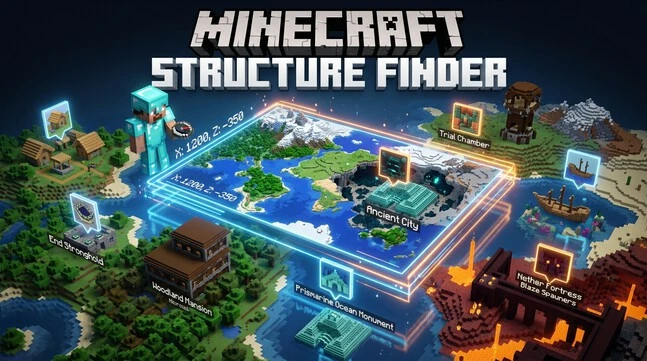
You can use the map to see where villages, strongholds, and other structures generate. It can also show their X and Z coordinates. These coordinates help you travel directly to a selected location. This saves time compared with searching randomly across the world.
The tool works by connecting your seed with the correct Minecraft version and edition. These settings matter because world-generation rules can differ. A matching seed, edition, and version give you more reliable structure locations.
What Can It Help You Find?
A structure finder can locate many generated structures across Minecraft. These include villages, woodland mansions, ocean monuments, and strongholds. You can also find Ancient Cities, Trial Chambers, pillager outposts, and temples.
Depending on the tool and version, you can locate shipwrecks, ruined portals, mineshafts, Nether fortresses, bastion remnants, and End Cities. You can then use the displayed coordinates to explore these locations in your world.
How a Minecraft Structure Finder Works
Seed and World Generation
A Minecraft seed acts like a starting value for generating a world. Minecraft uses that seed to create terrain, biomes, and structures. The same seed can produce the same world generation under matching conditions.
World generation uses rules to determine where different features appear. These rules include the placement of villages, monuments, mansions, and other structures. A structure finder uses this information to predict their locations.
The seed alone does not guarantee identical results across every Minecraft version. Java Edition and Bedrock Edition can use different generation rules. Updates can also change how structures generate.
That makes the correct seed important when using a structure finder. You should also select the matching edition and game version. These details help the finder calculate locations for your actual world.
Structure Generation and Coordinates
Minecraft generates structures at specific locations within the world. A structure finder calculates these locations from the seed and generation rules.
It usually displays each location using X and Z coordinates. The X coordinate shows your position from east to west. The Z coordinate shows your position from north to south.
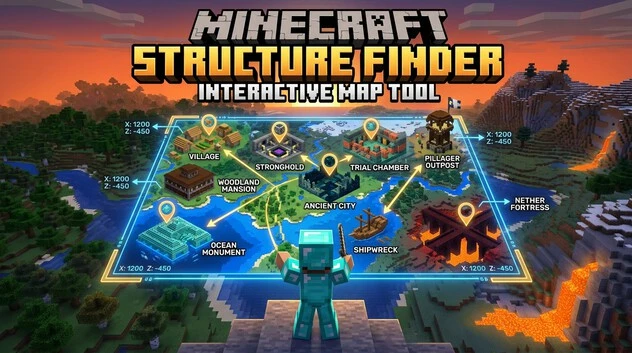
An interactive map places markers at these calculated locations. Each marker represents a structure you can explore.
Map-Based Structure Finding
An interactive map makes structure searching easier. You can select a structure type and view its markers. You can also compare locations with your spawn point.
This lets you quickly identify nearby structures and plan your route before exploring.
How to Use a Minecraft Structure Finder
Enter Your World Seed
Start by entering the seed of your Minecraft world into the structure finder. Your seed connects the tool to your world’s generation pattern.
You can usually find the seed through your world’s settings or the /seed command. Make sure you enter the complete seed correctly. Even a small mistake can produce different structure locations.
Select Your Minecraft Edition and Version
Next, choose the correct Minecraft Edition and game version. Select Java Edition if you play Java. Choose Bedrock Edition for Bedrock worlds.
Version compatibility also matters. Minecraft updates can change world-generation rules and structure placement. Using the wrong version may show inaccurate locations.
Always match the finder settings with your actual world.
Choose a Dimension
Select the dimension where you want to search. The Overworld, Nether, and The End have different structures and generation rules.
Choose the correct dimension before searching. This keeps the map focused on structures available in that world.
Select a Structure
Use the structure filter to choose what you want to find. You can search for villages, strongholds, Ancient Cities, monuments, or other structures.
Selecting one structure type makes the map easier to read. It also helps you focus on the locations that matter to your exploration.
Read the Map and Coordinates
The finder displays structure markers on the interactive map. Select a marker to view its location and X/Z coordinates.
Compare these coordinates with your spawn point to estimate the distance. Then travel toward the displayed location in Minecraft.
Use the X coordinate for east-west movement. Use the Z coordinate for north-south movement. Check your in-game coordinates while traveling.
For important locations, verify the structure in your actual world. This helps catch seed, edition, or version mismatches.
Structures You Can Find by Seed
Overworld Structures
The Overworld contains many structures that a Minecraft structure finder can locate. Villages provide useful early resources and trading opportunities. Woodland mansions offer rare loot and challenging exploration. Ocean monuments contain guardians and valuable materials.
You can also locate pillager outposts, desert pyramids, jungle temples, swamp huts, and igloos. Coastal and underground searches can reveal shipwrecks, ruined portals, mineshafts, trail ruins, and ocean ruins.
A Minecraft village finder can help locate villages near your desired area. Other tools can work like a woodland mansion finder or ocean monument finder.
Structure availability depends on your Minecraft edition and version. Always select settings that match your world before trusting the displayed locations.
Underground Structures
Underground structures can take much longer to find through normal exploration. A stronghold finder helps locate strongholds that contain End portals.
You can also locate Ancient Cities, Trial Chambers, and mineshafts using seed-based tools. Their coordinates give you a clear target before you start digging.
This approach saves time when you need a specific underground structure.
Nether Structures
The Nether contains several important generated structures. A structure finder can help locate Nether fortresses and bastion remnants from your seed.
Ruined portals can also appear across different areas. Their locations can help plan Nether exploration and travel routes.
Always select the Nether dimension before checking these locations.
End Structures
End Cities provide some of the most valuable locations for late-game exploration. They can contain valuable loot and access to Elytra-equipped End Ships.
An End City finder can show potential locations using your world seed. Check the The End dimension and the correct Minecraft version first.
This makes long End expeditions easier to plan.
“You can also use our Minecraft Biome Finder to quickly locate specific biomes and explore your world more easily.”
Minecraft Structure Finder by Seed
Why the Seed Matters
A Minecraft structure finder uses your world seed to calculate generated structure locations. The seed determines the world generation pattern used by Minecraft.
When you enter the correct seed, the finder can map structures connected to that generation pattern. These may include villages, strongholds, Ancient Cities, Trial Chambers, and other structures.
The seed must match your actual Minecraft world. An incorrect seed can produce completely different structure coordinates. This is why seed accuracy is the first step when using a structure finder.
Finding Your Minecraft Seed
You can usually find your world seed through the world’s settings or information screen. The exact method depends on your Minecraft Edition and platform.
In supported worlds, you can also use the /seed command to display the current seed. Command access can depend on your world settings or permissions.
Copy the complete seed carefully. Keep any negative sign if the seed contains one.
Matching the Seed to Your World
Entering the seed is not enough for accurate results. You must also match your Minecraft Edition, game version, and dimension.
Java Edition and Bedrock Edition can use different world-generation rules. Minecraft updates can also affect structure generation.
Choose the same version used by your world. Then select the correct dimension, such as the Overworld, Nether, or The End.
If any setting is wrong, the finder may show structure locations that do not match your world. Always verify important coordinates in-game before traveling long distances.
Java vs Bedrock Structure Finder
Java Edition
A Minecraft structure finder for Java Edition should match the Java version used by your world. Structure generation can depend on the specific game version.
Enter your Java world seed and select the matching version in the finder. This helps the tool calculate structure locations using the correct generation rules.
Before traveling, verify important coordinates in your Java world. This provides an extra check against incorrect settings or seed data.
Bedrock Edition
The same principle applies when using a Minecraft structure finder for Bedrock Edition. Enter the exact seed from your Bedrock world and select the appropriate Bedrock version.
Bedrock worlds follow their own world-generation behavior. Therefore, you should use a finder that supports your selected Bedrock version.
Check the displayed coordinates against your actual world before relying on them. This is especially important when locating structures far from spawn.
Why Results Can Differ
Structure finder results can differ because Java Edition and Bedrock Edition use different world-generation rules. Minecraft updates can also change generation behavior.
Even with the same numerical seed, structure placement may not always match between editions. Version compatibility also matters because generation rules can change between releases.
Seed compatibility is therefore essential for accurate results. Your finder should match the seed, edition, version, and dimension of your world.
Never assume that coordinates from one edition automatically work in another. Always verify important structure locations in-game before making a long journey.
Finding Structures With Minecraft /locate
What /locate structure Does
Minecraft also provides an in-game way to locate generated structures. The /locate structure command searches for the nearest matching structure in your current dimension.
For example, you can use it to locate villages, strongholds, Ancient Cities, Trial Chambers, and other supported structures. The command returns coordinates for the nearest matching location.
This makes /locate structure useful when you are already playing and need a specific structure quickly.
Structure Finder vs /locate
A Structure Finder uses your seed and world-generation data to preview structure locations. It can display multiple structures on an interactive map.
The /locate command works directly inside Minecraft. It searches for the nearest matching structure and provides its coordinates.
Use a structure finder when you want to plan exploration. Use /locate when you need a quick in-game location.
Permissions and Cheats
Command availability depends on your world or server settings. Cheats, permissions, or operator access may be required.
Check the applicable settings before using /locate.
How to Read Structure Coordinates
X and Z Coordinates
Minecraft uses X and Z coordinates to show a structure’s horizontal location. The X coordinate shows your position along the east-west direction. The Z coordinate shows your position along the north-south direction.
A structure finder usually displays both values with each map marker. Compare them with your current coordinates in Minecraft to know which direction to travel.
Structure Markers
Structure markers show the locations of generated structures on the map. Each marker usually represents a specific structure type.
Click or select a marker to view its coordinates. Use the structure name to confirm that you selected the location you wanted.
Distance From Spawn
You can compare a structure’s coordinates with your spawn coordinates to estimate how far away it is. Smaller coordinate differences usually mean the structure is closer.
For example, if your spawn is near X 0, Z 0, a location near X 200, Z 100 is relatively close. A location at X 5,000, Z 4,000 requires a much longer journey.
Check your current X and Z values while traveling. Follow the coordinate changes until they approach the structure’s listed location.
Why a Structure Finder May Show Incorrect Results
Wrong Seed
The most common reason for incorrect structure locations is an incorrect world seed. Even one missing digit can change the generated world.
Check the seed carefully before searching. If it contains a negative sign, include it exactly as shown. Compare the finder’s seed with the seed from your actual Minecraft world.
Wrong Edition or Version
Using the wrong Minecraft Edition can produce different structure locations. Java Edition and Bedrock Edition do not always generate structures in the same way.
A version mismatch can also affect results. Updates may change world-generation rules or structure placement.
Always select the same edition and version as your world. Do not assume coordinates from Java automatically apply to Bedrock, or vice versa.
World Generation Changes
Minecraft updates can change parts of world generation. These changes may affect how or where certain structures generate.
A structure finder must therefore support the version you are playing. Older generation data may not match a newer Minecraft world.
Check the finder’s version setting before using its coordinates.
Existing vs Newly Generated Chunks
World updates can create confusing results around already-generated chunks. Structures from newer generation rules may not appear as expected in areas your world generated earlier.
This can make older worlds behave differently from newly created worlds.
Coordinate Verification
Always verify important coordinates in your actual Minecraft world before relying on them.
Best Practices for Accurate Structure Locations
Match All Settings
Before searching, match every setting with your actual Minecraft world. Use the correct seed, edition, version, and dimension.
Check the seed carefully, including any negative sign. Select Java or Bedrock correctly. Then choose the same game version and dimension.
These settings help the structure finder calculate locations that match your world.
Verify Coordinates In-Game
Treat map coordinates as a guide, not a guarantee. Travel to the displayed location and check your coordinates in Minecraft.
Compare your in-game X and Z values with the finder’s results. Then confirm that the expected structure actually generates there.
If you cannot find it, recheck your seed, edition, version, and dimension. This simple check can identify most setup mistakes before you spend more time exploring.
Use Structure Filters
Use structure filters to display only the locations you need. This keeps the map easier to read.
For example, select villages when searching for a village instead of showing every structure.
Keep Version Information Visible
Always show the supported Minecraft version before presenting structure coordinates.
This helps users confirm compatibility before using the results.
Minecraft Structure Finder FAQ
What is a Minecraft structure finder?
A Minecraft structure finder is a tool that uses your world seed to locate generated structures. It displays structure markers and coordinates on an interactive map.
Can I find Minecraft structures by seed?
Yes. Enter your Minecraft world seed into a compatible structure finder. Select the correct edition, version, and dimension to find structure locations.
What structures can a Minecraft structure finder locate?
Depending on the tool and version, you can locate villages, strongholds, Ancient Cities, Trial Chambers, mansions, monuments, outposts, temples, shipwrecks, fortresses, bastions, and End Cities.
Does a Minecraft structure finder work with Bedrock?
Yes, many structure finders support Bedrock Edition. Select the correct Bedrock version and enter your exact world seed for the best matching results.
Does a Minecraft structure finder work with Java Edition?
Yes. Structure finders can support Java Edition and its different versions. Always choose the Java version that matches your Minecraft world before checking coordinates.
Why are my structure coordinates incorrect?
Check your seed, Minecraft Edition, version, and dimension. A mismatch in any of these settings can produce different structure coordinates.
Can I find a village using a Minecraft structure finder?
Yes. Select the village filter and enter your world seed. The finder can display potential village locations and their X and Z coordinates.