Minecraft Seed Finder: What It Is and What You Can Find
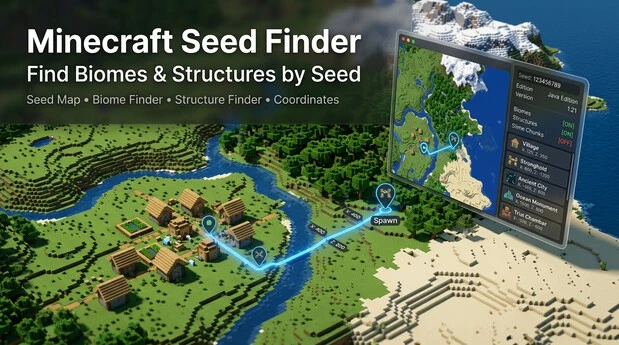
A Minecraft seed finder helps you explore a world before you travel through it.
It uses a world seed to show where important biomes and structures generate.
What Is a Minecraft Seed?
A Minecraft seed is a value that determines how the game generates a world.
The seed influences terrain, biomes, and many world features.
When you use the same seed with compatible world-generation settings, Minecraft can recreate the same world layout.
However, world generation can change between Minecraft versions.
What Does a Minecraft Seed Finder Do?
A Minecraft seed finder analyzes a seed and displays useful locations on a map.
You can use it to perform a Minecraft seed search or seed lookup.
Depending on the tool, you can locate:
- Biomes
- Villages
- Strongholds
- Ocean monuments
- Woodland mansions
- Ancient cities
- Trial chambers
- Other generated structures
This makes seed discovery much faster than exploring the entire world manually.
Why Does the Minecraft Version Matter?
Always select the correct Minecraft edition and version before checking a seed.
World-generation changes can move biomes and structures to different locations.
Minecraft has also made world-generation changes across Java and Bedrock.
For example, Bedrock introduced 64-bit seeds and improved Java world-generation parity in version 1.18.30.
How Minecraft Seed Finder Works
A Minecraft seed finder starts with your world seed.
The seed gives Minecraft the starting value for generating the world.
Minecraft uses procedural generation to create terrain, biomes, and structures.
Its world-generation system uses mathematical noise and random processes.
From Seed to World
The process follows a simple idea:
Seed → World Generation → Chunks → Biomes and Structures
Minecraft uses the seed with its world-generation algorithm.
The algorithm then calculates what should generate across the world.
The game divides the world into chunks.
These chunks form the areas that Minecraft generates and loads as you explore.
World generation uses multiple passes.
These passes create terrain, place biomes, generate structures, and add other features.
A seed finder uses this same seed information to predict locations on a map.
You can then check coordinates for specific biomes or structures.
Why Java and Bedrock Can Differ
The same seed does not guarantee identical results across every edition and version.
Java Edition and Bedrock Edition can share terrain and biome generation.
However, structure placement can differ between the editions.
Bedrock also supports 64-bit seeds that work across Java and Bedrock for compatible world generation.
Minecraft also changes its world-generation systems between versions.
These changes can affect terrain, biomes, structures, and other generated features.
That is why a seed finder needs the correct Minecraft edition and version.
The key idea is simple: your seed determines the starting input, while the game version controls how Minecraft uses it.
How to Use a Minecraft Seed Finder
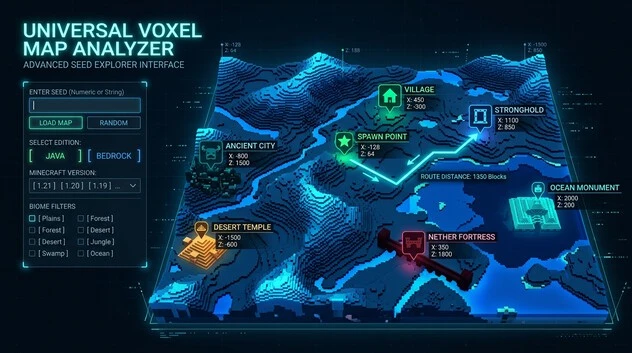
Using a Minecraft seed finder takes only a few steps.
The key is matching your seed, edition, and version correctly.
Step 1: Get Your Minecraft World Seed
First, find the seed of your world.
In Java Edition, use the /seed command to view and copy it.
In Bedrock Edition, open the world options to view or copy the seed.
You can also use the F3 debug screen for useful coordinates while checking locations in-game.
Step 2: Open a Compatible Seed-Finder Tool
Open a Minecraft seed map or seed-finder tool.
Choose a tool that supports your Minecraft edition and version.
Step 3: Select Your Edition and Version
Select Java Edition or Bedrock Edition.
Then choose the exact Minecraft version that matches your world.
This step matters because world generation can change between versions.
Minecraft has also improved world-generation parity between Java and Bedrock over time.
Step 4: Enter the Seed Number
Enter your world seed exactly as Minecraft shows it.
Check every digit before generating the map.
One incorrect number can produce completely different results.
Step 5: Generate the Seed Map
Generate the map after entering your seed and settings.
The tool can then display supported biomes and structures.
You can use the map to explore locations before visiting them in-game.
Step 6: Find Your Target Biome or Structure
Select the biome or structure you want to find.
The map will show its location when the tool supports that feature.
For example, you can search for a village, stronghold, ancient city, or specific biome.
Step 7: Use Coordinates in Minecraft
Seed-finder maps usually provide X, Y, and Z coordinates.
Use these coordinates to navigate toward the selected location.
Your in-game position lets you compare your location with the map.
Bedrock also supports displaying coordinates through world settings.
For the latest version, check out our complete guide on [Minecraft Patch Download 1.21.130] to download and install the update easily.
Finding Biomes With a Minecraft Seed Finder
A Minecraft seed finder can help you locate specific biomes across your generated world.
You only need your seed, edition, and Minecraft version.
Select the Biome You Want
Open the biome finder or map view in your seed-finder tool.
Choose the biome you want to locate.
Common options include:
- Plains biome
- Desert biome
- Taiga biome
- Mushroom fields
- Badlands
- Ice spikes biome
- Mangrove swamp
- Cherry grove
- Jungle biome
- Savanna biome
The tool then highlights matching biome locations on the map.
Check the Biome Location
Zoom into the map after selecting your biome.
Look for the highlighted biome area and note its coordinates.
The map helps you see how far the biome sits from your current position or spawn point.
Use Coordinates to Reach the Biome
Record the biome’s X, Y, and Z coordinates when the tool provides them.
Then use your in-game coordinates to navigate toward that location.
This makes biome discovery faster than searching randomly through unexplored terrain.
Match Your Minecraft Version
Always choose the same Minecraft edition and version as your world.
World-generation changes can affect biome locations between versions.
Java Edition and Bedrock Edition can also produce different results for some world-generation features.
Therefore, check your settings before trusting a seed-finder map.
Simple rule: Enter the correct seed, select the correct version, choose your biome, then follow its coordinates.
Finding Villages and Other Overworld Structures
A Minecraft seed finder can reveal where many structures generate in your world.
Enter your seed and select the correct Minecraft version first.
Structures You Can Find
Depending on the tool, you can locate:
- Villages
- Ocean monuments
- Woodland mansions
- Ancient cities
- Desert temples
- Jungle temples
- Pillager outposts
- Shipwrecks
- Buried treasure
- Ruined portals
- Trial chambers
The tool displays supported structures on a map.
You can select a structure and check its location.
How Seed Discovery Finds Structures
The process follows a simple chain:
Seed → World generation → Structure location → Coordinates → In-game discovery
Your seed provides the starting input for world generation.
Minecraft then uses its generation system to determine where structures appear.
A compatible seed finder can calculate these locations from the seed.
The map then shows the structure and its coordinates.
Use Coordinates to Find the Structure
Choose the structure you want to visit.
Note its X, Y, and Z coordinates when available.
Then compare those coordinates with your in-game position.
Travel toward the displayed location to find the structure.
This approach saves time and reduces random exploration.
Check Version Compatibility
Always match the seed finder with your Minecraft edition and version.
World-generation changes can affect structure locations.
Java and Bedrock can also differ in structure placement.
Therefore, confirm your settings before using the displayed coordinates.
Tip: A correct seed and version give you the most reliable structure locations.
6. Finding Strongholds and End Portals
A Minecraft seed finder stronghold tool can help you locate strongholds using your world seed. It shows their positions on a map and provides coordinates for easier navigation.
Finding Strongholds With a Seed Finder
Enter your world seed into a compatible seed finder. Select the matching Minecraft edition and version if the tool requires it. The map can then display available stronghold locations.
Strongholds are important because they contain the rooms needed to reach the End. Their locations appear as coordinates on the seed map.
Understanding Stronghold Coordinates
Seed finders usually show a stronghold’s X and Z coordinates. Use these coordinates to identify its location in your Minecraft world.
The Y coordinate can help when you need to search underground. Move toward the listed X and Z position, then explore below the surface to find the stronghold.
Finding the End Portal Inside a Stronghold
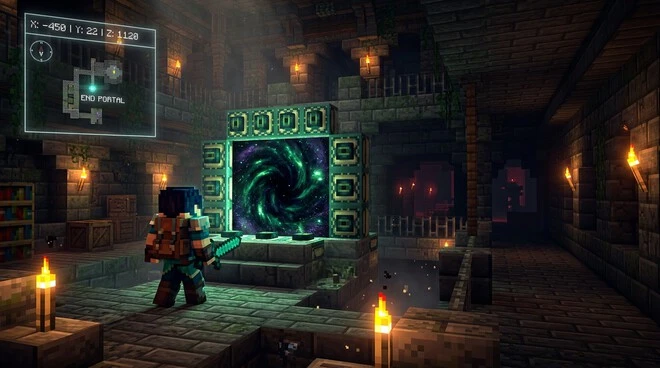
Locating a stronghold does not mean you have found the End portal. The End portal is a structure inside the stronghold.
After reaching the stronghold, explore its connected rooms and corridors until you find the portal room. The portal room contains the End portal frame needed to enter the End.
Therefore, a Minecraft seed finder end portal search usually helps you locate the stronghold rather than directly placing you at the portal room.
Why Edition and Version Matter
Always use the edition and Minecraft version that match your world. World generation can change between versions, and structure placement can differ between Java Edition and Bedrock Edition.
This matters especially when you depend on coordinates from a seed finder. A location shown for one version may not match your actual world.
Stronghold vs End Portal: What Is the Difference?
- Stronghold: The underground structure you need to locate.
- End portal: The portal room inside the stronghold that leads to the End.
- Seed finder: The tool that helps predict the stronghold’s location.
- Coordinates: The position you use to travel toward that location.
In short, use the seed finder to locate the stronghold, then explore it to reach the End portal.
Finding Nether Structures From a Minecraft Seed
A Minecraft seed finder can help identify important structures in the Nether before you explore them in-game.
Finding Nether Fortresses
A seed-based map can show the location of a Nether fortress when the selected tool supports Nether structure mapping. Enter your seed and choose the matching world settings.
The map displays the fortress location and its coordinates. Use those coordinates to guide your Nether exploration.
Finding Bastion Remnants
You can also use a Minecraft seed map to locate Bastion Remnants. These large Nether structures appear at specific positions based on world generation.
Select Bastion Remnants on the map to see their predicted locations. Then use the displayed coordinates to find them in your world.
Using Nether Portal Coordinates
Seed maps can help connect Nether locations with your wider world exploration. Some tools display coordinates for Nether structures and other useful locations.
Remember that Nether coordinates differ from Overworld coordinates. When planning a route between dimensions, use the coordinates shown for the correct dimension.
Connecting Overworld and Nether Exploration
A seed finder can help you plan where to enter the Nether and which structures to search for. You can compare mapped locations with your portal position and then travel toward the target structure.
This approach turns seed discovery into a practical navigation tool without requiring random exploration.
Quick Structure-Finding Workflow
- Enter your Minecraft world seed.
- Select the correct edition and version.
- Switch the map to the Nether.
- Select Nether Fortress or Bastion Remnant.
- Check the structure coordinates.
- Use those coordinates while exploring the Nether.
The key purpose is simple: use the seed to predict Nether structure locations, then use coordinates to find them in-game.
Minecraft Seed Finder for Special Locations and World Features
A Minecraft seed finder can help investigate where specific world features occur. Instead of searching randomly, you can use the seed to explore locations on a map.
Finding Slime Chunks
Some seed-finder tools can identify slime chunks from your world seed. These are specific chunks where slimes can spawn under the required conditions.
Select the slime chunk option when available, then check the displayed chunk locations and coordinates.
Checking Diamond Ore Locations
Some seed tools provide information about diamond ore location or ore distribution. These results can help you investigate where certain resources may generate.
Resource locations can depend on the Minecraft version and generation rules. Treat tool results as version-specific information.
Locating the Spawn Point
A seed map can also help you understand the area around your world’s spawn point. This makes it easier to investigate nearby biomes, structures, and terrain.
Use the spawn area as a starting reference when exploring the generated world.
Exploring Rare Biomes and Interesting Terrain
Seed discovery tools can reveal unusual terrain and rare biome locations. You can search the map for biomes such as Mushroom Fields, Ice Spikes, or other distinctive areas supported by the tool.
This helps you identify interesting locations before traveling across the world.
Finding Unusual Combinations
Seed maps can also help you investigate combinations of biomes and structures. For example, you may look for a structure located near a specific biome or unusual terrain.
These combinations can make a seed especially interesting for exploration or world planning.
Check the Version Before Using Results
World features depend on Minecraft’s world-generation rules. Always select the appropriate edition and version before relying on a seed-finder result.
The main idea is simple: use the seed finder to discover where specific features occur, then use their coordinates to investigate them in-game.
Minecraft Seed Finder: Java vs Bedrock vs PE
A Minecraft seed can behave differently across editions and versions. Choose the edition that matches your game before using seed-finder results.
Minecraft Java Edition
A Minecraft seed finder Java edition tool helps locate biomes and structures in Java worlds. Java-specific world-generation rules can affect structure placement and other locations.
When searching for a Java seed, select the exact Java version supported by your world.
Minecraft Bedrock Edition
A Minecraft seed finder Bedrock edition tool helps investigate biomes, structures, and other seed-based locations in Bedrock worlds.
Bedrock and Java can share some world-generation behavior, but structure placement can differ. Use a Bedrock-compatible map and select the correct version for reliable results.
Minecraft Pocket Edition (MCPE)
Minecraft PE is part of the Bedrock platform. Therefore, a Minecraft seed finder PE search should use Bedrock-compatible seed information.
Choose the Bedrock version that matches the version running on your mobile device.
Minecraft 1.20 and 1.21
Seed locations depend on the world-generation rules used by the selected Minecraft version. A seed map for Minecraft 1.20 may not produce identical results for Minecraft 1.21.
This matters when searching for biomes, villages, strongholds, Nether structures, or other features.
Why Exact Version Selection Matters
Before using a seed finder, check these three details:
- Edition: Java or Bedrock
- Version: Such as Minecraft 1.20 or 1.21
- Seed: The exact seed used by your world
Selecting the correct combination helps the tool match your world’s generation rules more closely.
Simple rule: Java uses Java-compatible data, while Bedrock and MCPE use Bedrock-compatible data. Always match the exact version before trusting mapped locations.
Minecraft Seed Finder Tools and Map Viewers
Purpose: Establish the page as a useful resource hub while remaining within seed discovery.
Cover the role of:
- Chunkbase
- AMIDST
- Minecraft Seed Map
- Seed Map Viewer
- Cubiomes
Explain the types of functionality relevant to the topic:
- Seed input
- Biome discovery
- Structure discovery
- Map visualization
- Coordinates
- Version/edition selection
- Seed searching/filtering
Also naturally cover:
- Chunkbase seed map
- Minecraft seed map viewer
- Minecraft seed finder map
- AMIDST seed viewer
Minecraft Seed Finder: Accuracy, Verification & Common Questions
A Minecraft seed finder can provide useful location data, but accurate results depend on matching your world settings.
Minecraft Seed Finder Accuracy Checklist
Before trusting a mapped location, check:
- Seed: Confirm that you entered the complete seed correctly.
- Edition: Select Java or Bedrock according to your game.
- Version: Match the Minecraft version used by your world.
- Coordinates: Check the displayed X, Y, and Z values where available.
- In-game location: Travel to the coordinates and verify the feature in your actual world.
This final check helps identify differences between the tool’s results and your generated world.
Common Minecraft Seed Finder Problems
Wrong version selected: World-generation changes can affect biome and structure locations.
Wrong edition selected: Java and Bedrock can use different structure-generation behavior.
Incorrect seed entered: Even a different seed produces a different generated world.
Structure not appearing: Check the edition, version, seed, coordinates, and selected dimension.
Different world-generation behavior: Updates can change how Minecraft generates terrain, biomes, and structures.
Minecraft Seed Finder FAQ
What is a Minecraft seed finder?
A Minecraft seed finder is a tool that uses a world seed to help locate biomes, structures, and other supported world features.
How do I find my Minecraft world seed?
In Java Edition, you can use the /seed command. Bedrock worlds provide seed information through the world’s settings.
Can Minecraft seed finder locate biomes?
Yes. Compatible seed-finder tools can display supported biomes and their locations on a map.
Can a seed finder locate villages?
Yes. Many seed maps support village locations and provide coordinates for them.
Can it find strongholds?
Yes. A compatible seed finder can identify stronghold locations. You must then explore the stronghold to find its End portal room.
Can I use a seed finder for Bedrock?
Yes. Use a seed finder that supports Minecraft Bedrock Edition and the version running on your world.
Can I use a seed finder for Java?
Yes. Choose a Minecraft seed finder Java edition tool that supports your specific Java version.
How do I find a seed from an existing world?
Open the world’s seed information in Minecraft. Java players can use /seed, while Bedrock players can check the world settings.
Is a Minecraft seed finder accurate?
It can be accurate when the seed, edition, version, and map settings match your world. Always verify important locations in-game.
Why are seed-finder coordinates different from my world?
Different coordinates can result from an incorrect seed, edition, version, dimension, or world-generation behavior. Recheck all settings before investigating the location.